
This guide will show you how to Set Up In-Game Voice Chat for your Enshrouded Server
Not a client yet? Order an Enshrouded Server today with Citadel Servers
In-game voice chat is a useful feature in Enshrouded that allows players to communicate with one another directly through the game without relying on external voice communication applications such as Discord. Whether players are coordinating combat strategies, exploring dangerous areas, gathering resources, or building settlements together, having voice communication readily available can make multiplayer adventures more convenient and immersive. By enabling this feature on your dedicated server, you can provide players with an additional way to interact and collaborate throughout their journey in Embervale. Enshrouded offers two different voice chat modes, allowing server owners to customize how players communicate with one another. Proximity voice chat allows players to hear one another when they are nearby in the game world, creating a more immersive experience that encourages communication during exploration and cooperative activities. Alternatively, Global voice chat allows everyone connected to the server to communicate regardless of their in-game location. This option is particularly useful for larger groups, coordinated activities, or communities where players frequently explore different areas of the world. By default, voice chat is disabled on Enshrouded dedicated servers. However, enabling it is straightforward and only requires adjusting the appropriate configuration options. You can use the enableVoiceChat parameter to activate or deactivate voice communication and the voiceChatMode parameter to choose between Proximity and Global voice chat. These settings are available in the server's enshrouded_server.json configuration file and can be modified through your hosting provider's control panel. In this guide, we will walk you through the process of setting up in-game voice chat on your Enshrouded server using the Citadel Servers Game Panel. You will learn how to access the appropriate configuration file, enable voice communication, and select your preferred voice chat mode. We will also explain the available options so you can determine which communication method best suits your server and community. Before making any changes, we recommend stopping your server and creating a backup of your existing configuration file. This helps preserve your current settings and prevents accidental configuration issues. Once you have updated the necessary parameters and saved your changes, restart your server to apply the new configuration. Players should then be able to communicate using the selected in-game voice chat mode, provided their individual game and microphone settings are configured correctly. With in-game voice chat properly configured, you can create a more connected multiplayer environment where players can easily communicate, coordinate activities, and enjoy their adventures together without depending entirely on third-party communication platforms.
Enabling Voice Chat
1. Log in to your Game Panel and navigate to your service.
2. Before making any modifications, stop the server from running by clicking the Stop button.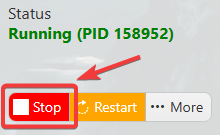
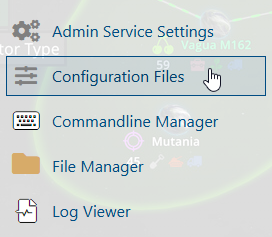
3. Navigate to the Configuration Files section.
4. Open the Text Editor and locate the enableVoiceChat parameter. Set its value to true to enable in-game voice chat. Next, locate the voiceChatMode parameter and select your preferred voice chat mode from Global Chat or Proximity Chat.

5. After editing, click the Save button to apply the changes.

Did the above information not work for you?
Please click here to contact our support via a ticket.
