
This guide will show you how to Set Up an Event on your MX Bikes Dedicated Server
Click here to order your MX Bikes server with Citadel Servers today!
In MX Bikes, creating an event lets you customize your racing sessions and give players a more tailored multiplayer experience. Whether you want to organize a casual practice session, host competitive races with friends, or set up a specific track and race format for your community, setting up an event helps you control your server conditions and create an enjoyable racing environment. By adjusting the available event settings, you can configure the session to suit your preferred racing style and the needs of your players. If you are hosting an MX Bikes dedicated server, you can set up an event by configuring the appropriate event parameters and selecting the options that match your intended session. Properly configuring these settings helps ensure that players can join the server and participate in the event as expected. Before making any changes, we recommend stopping your server if necessary and backing up the relevant configuration files to prevent accidental loss of your existing settings. In this guide, we will walk you through the steps to set up an event on your MX Bikes dedicated server, including how to access the relevant settings and configure the event according to your preferences. By following these instructions, you can prepare your server for your desired racing session and provide players with a customized multiplayer experience.
Setting Up an Event
1. Log in to your Game Control Panel.
2. Before making any modifications, stop the server from running by clicking the Stop button.

3. Navigate to the Configuration Files section.
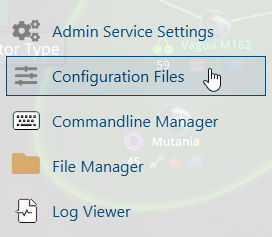
4. In Configuration Files, look for the Settings.ini file and click the Text Editor beside the Config Editor.

5. In the Text Editor, locate the [event] parameter and configure its settings according to your preferred event specifications.
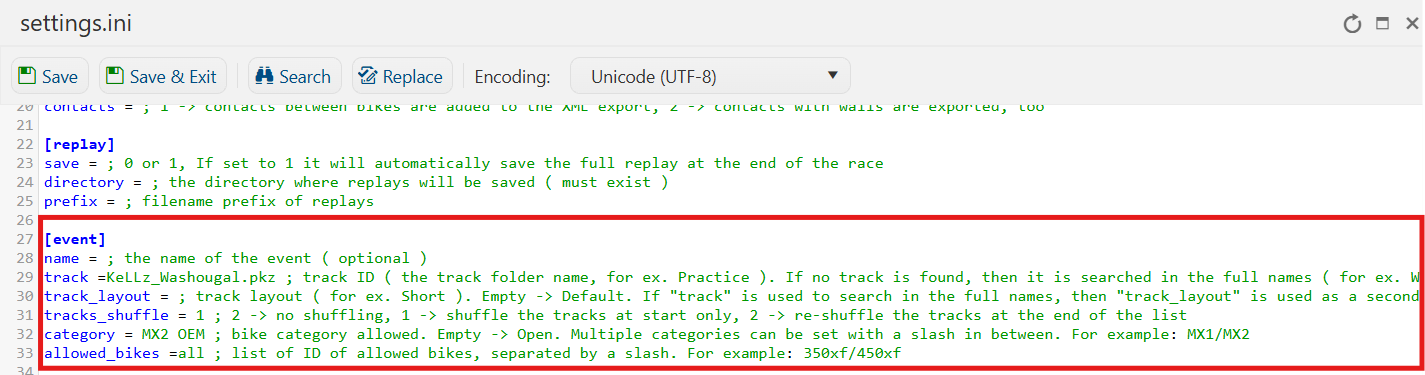
6. Once you have finished editing the settings, click the Save button to apply the changes to your server.