

This guide will help you learn about installing Spark Mod on your Hytale Server.
Click here to order your Hytale server with Citadel Servers today!
Mods are one of the best ways to enhance your Hytale server, giving you more control, customization, and exciting new features to share with your community. Among the most popular tools is Spark, a powerful performance monitoring and profiling mod designed to help server administrators track resource usage, optimize gameplay, and troubleshoot issues with ease. Installing Spark on your Hytale server not only improves stability but also provides valuable insights into how your server is running behind the scenes. Whether you’re hosting for friends or managing a large player base, Spark equips you with the data you need to keep everything smooth and efficient. In this guide, we’ll walk through the steps to install Spark on your Hytale server, explain why it’s useful, and highlight best practices to ensure you get the most out of it. By the end, you’ll have a fully functional setup that empowers you to monitor performance and deliver a better experience for your players.
Installing Spark on Your Hytale Server
1. Download the Spark Mod here.
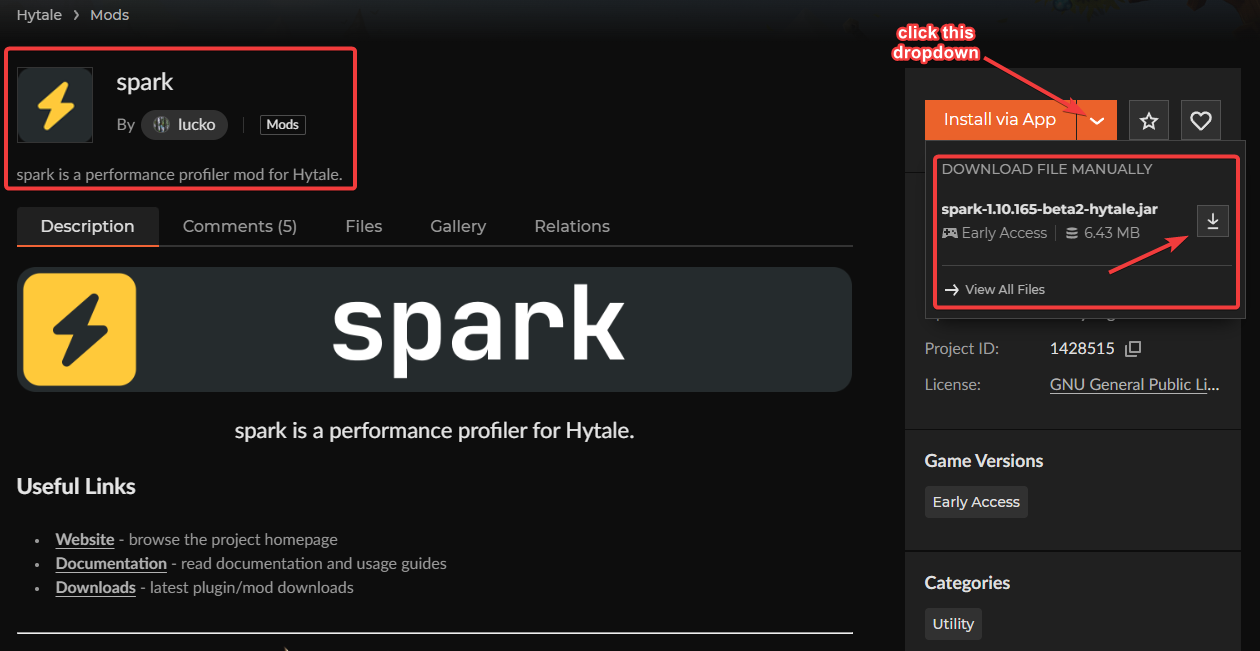
2. Log in to your Game Control Panel and navigate to your service.
3. Before making any modifications, stop the server from running by clicking the Stop button.

4. Navigate to the File Manager Tab.
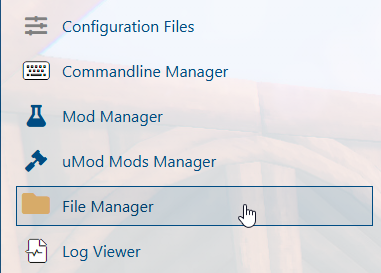
5. In the File Manager tab, look for the Mods folder and open it.
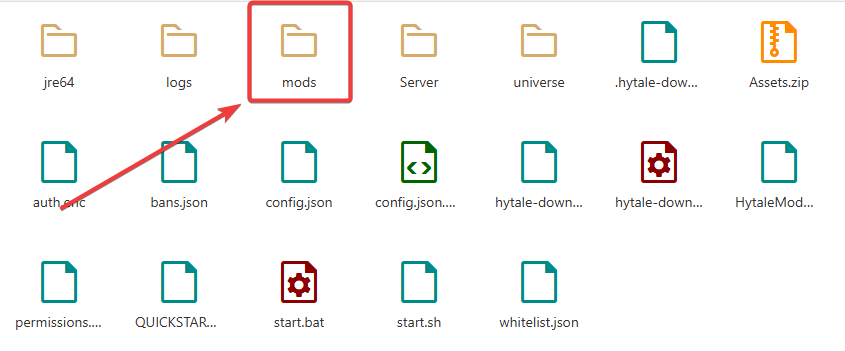
6. Upload the .jar file from the Spark Mod you downloaded.
When uploading files, we highly recommend using FTP, such as Filezilla. For more information, click here.
7. Once the file has been uploaded, launch the server and join to confirm the mod is functioning properly.
Running Spark Profiler on your Hytale Server
1. Log in to your Game Control Panel and navigate to your service.
2. Navigate to the Web-Console Tab.
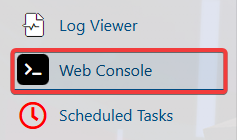
3. Run the command below to initiate Spark’s profiler:
/spark profiler start

Please click here to contact our support via a ticket.