

This guide will help you learn how to Restrict Fish Spawning on your Path of Titans Server
Click here to order your Path of Titans server with Citadel Servers today!
Controlling wildlife populations is an important part of customizing your Path of Titans server and creating a gameplay experience that aligns with your community's preferences. Whether you're looking to create a more challenging survival environment, reduce the availability of food sources, or establish a more balanced ecosystem, adjusting the fish spawning settings allows you to have greater control over the wildlife found throughout your server's world. By restricting fish spawning, you can prevent certain fish from appearing in your server, giving players fewer readily available food sources and encouraging them to adapt their hunting and survival strategies. This can be particularly useful for servers that aim to provide a more realistic survival experience, introduce additional gameplay challenges, or implement custom wildlife population settings. In this guide, we'll walk you through how to configure your Path of Titans server settings to restrict fish spawning. We'll also explain where to locate the relevant configuration parameters and how to adjust their values to match your preferred gameplay experience. By following these steps, you can customize fish availability and create a more controlled and engaging environment for your players.
Disabling Fish Spawning on Your Path of Titans Server
1. Log in to your Game Control Panel.
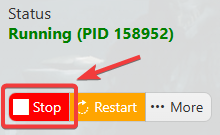
2. Before making any modifications, stop the server from running by clicking the Stop button.
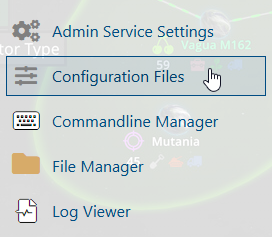
3. Navigate to Configuration Files.
4. In the Configuration Files section, locate the Game.ini file and click Text Editor to open and edit the file.

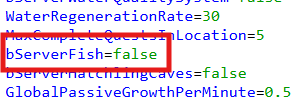
5. In the configuration file, locate the bServerFish parameter and set its value to False to disable fish spawning on your server.
(Note: If the parameter is not present in the configuration file, you can manually add it under the [/Script/PathOfTitans.IGameMode] section.)
6. After editing, click the Save button to apply the changes.

