
This guide will show you how to Show In-Game Coordinates on your Project Zomboid Server
Click here to order your Project Zomboid server with Citadel today!
In Project Zomboid, navigating the world of Knox Country can be challenging, especially when players need to find specific locations, regroup with teammates, or coordinate their movements during multiplayer sessions. Enabling the in-game coordinate display allows players to identify their character's exact position using numerical map coordinates, making it easier to communicate locations and navigate the surrounding environment. By default, player coordinates are hidden on servers that use the standard setting. However, Project Zomboid Build 42 introduces a built-in server option that allows administrators to enable this feature without relying on third-party modifications. Once enabled, the character's coordinates appear in the lower-right corner of the screen, providing players with a convenient reference for locating themselves within the game world. Displaying coordinates can be particularly useful for multiplayer communities, cooperative survival groups, and server administrators who need to establish meeting points, guide players to specific areas, or configure designated spawn locations. It can also simplify navigation when players explore unfamiliar towns, search for resources, or attempt to reunite after becoming separated. However, server owners should consider their preferred gameplay experience, as providing precise coordinates may make navigation easier and reduce some of the challenges associated with surviving in Knox Country. In this guide, we will walk you through how to enable the in-game coordinate display on your Project Zomboid server by adjusting the appropriate server configuration setting. By following these steps, you can customize your server to better accommodate your community's navigation preferences and multiplayer needs.
Showing In-Game Coordinates
1. Log in to your Game Control Panel.
2. Before making any modifications, stop the server from running by clicking the Stop button.

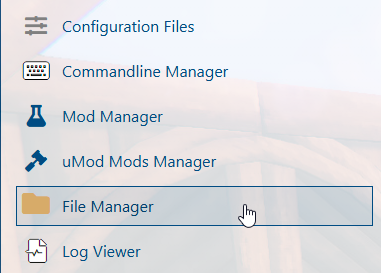
3. Navigate to the File Manager section.
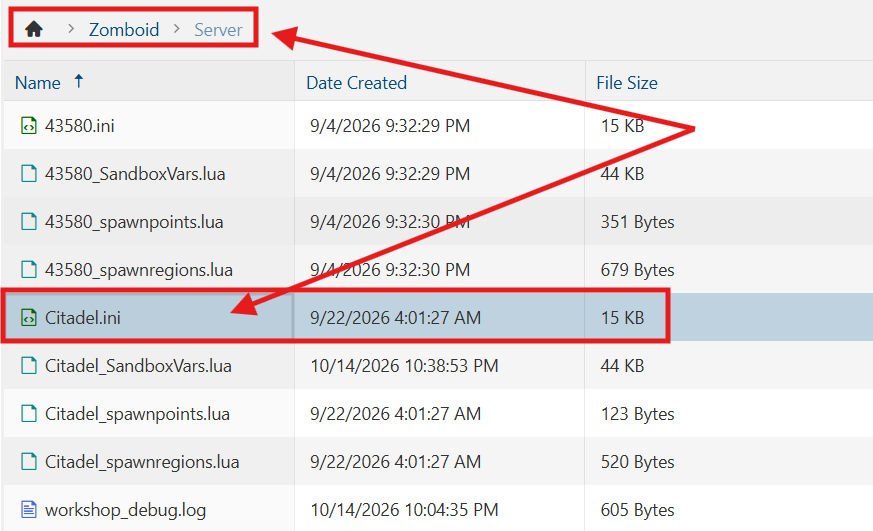
4. Navigate to the /Zomboid/Server directory and locate the [SaveName].ini file, replacing [SaveName] with the name of your server's save.
5. In the configuration file, locate the ShowCoordinates= line and set its value to true to enable the in-game coordinate display for players.

6. After editing, click Save to apply the changes.

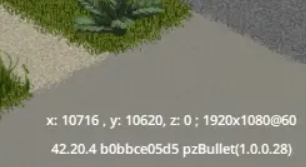
Once enabled, player coordinates will appear in the lower-right corner of the in-game screen.
Did the above information not work for you?
Please click here to contact our support via a ticket.