

This guide will help you install MetaMod on your Team Fortress Classic server. These tools are commonly used to enhance server functionality by adding plugins, admin controls, and additional gameplay features.
Click here to order your TFC server with Citadel today!
This guide will walk you through the process of installing MetaMod on your Team Fortress Classic server.
1. Login to your Game Control Panel.
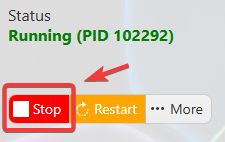
2. Before making any modifications, stop the server from running by clicking the Stop button.
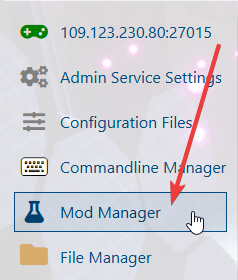
3. Navigate to Mod Manager.
4. Click the Install button for MetaMod.
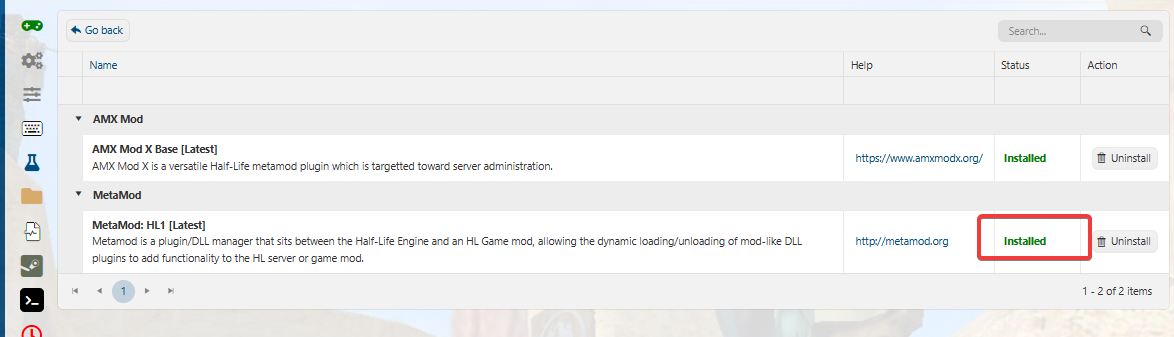
Once installed, you can begin utilizing these tools to enhance your server experience.
5. To verify it is installed, go to Web Console in your game panel and type:meta version
It should output the metamod version if it was successfully installed.
Configure Metamod to Load in TFC
6. If it shows it is not installed, go to File Manager in your Game Panel
In your tfc folder, find the file titled liblist.gam.
Open liblist.gam
Locate the line that specifies the main TFC game DLL:gamedll "dlls\tfc.dll"
Comment this line out by adding // at the beginning, and type in the new path to Metamod underneath it:
//gamedll "dlls\tfc.dll"
gamedll "addons\metamod\dlls\metamod.dll"
Save and close the file. It should look like this below: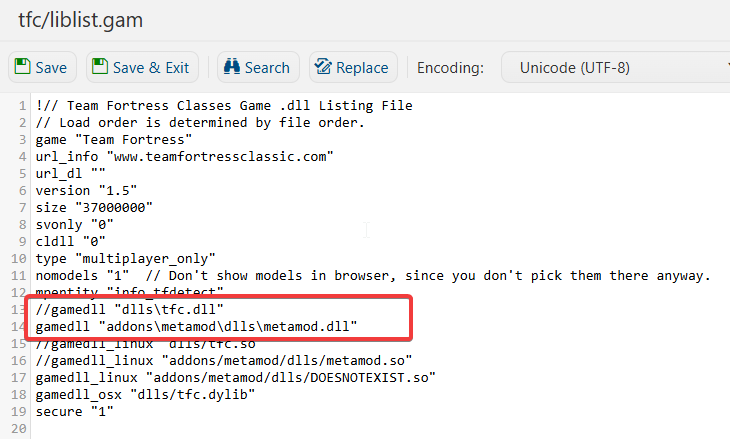
7. Restart your server.
Did the above information not work for you?
Please click here to contact our support via a ticket.