

This guide will show you how to upload your local save to your Windrose server.
Click here to order your Windrose server with Citadel Servers today!
1. Log in to your Game Control Panel.
2. On your PC, open Windows Run with "Win+R".
Copy and paste this command to be taken to the first part of the save directory:
"%LocalAppData%\R5\Saved\SaveProfiles"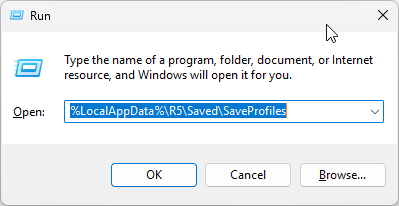
3. Once you are in this base directory, select your Steam ID, the game version, and find your world.
"<Your Steam ID>\RocksDB\<Game Version>\Worlds"
Your world folder will have a random string of characters as its name.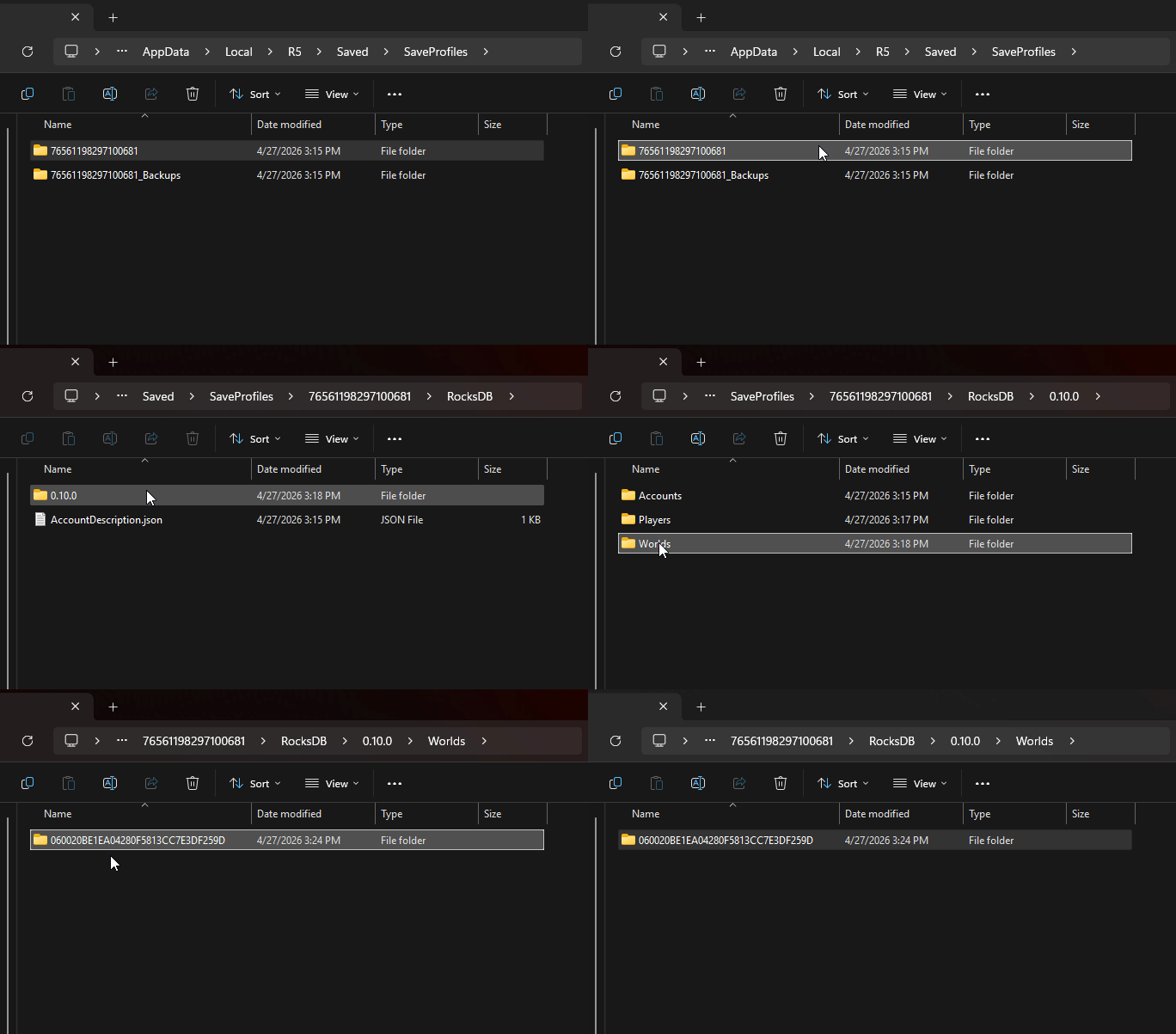
4. If you have multiple worlds on your local PC.
Open the game and hover the mouse over the world to show its ID.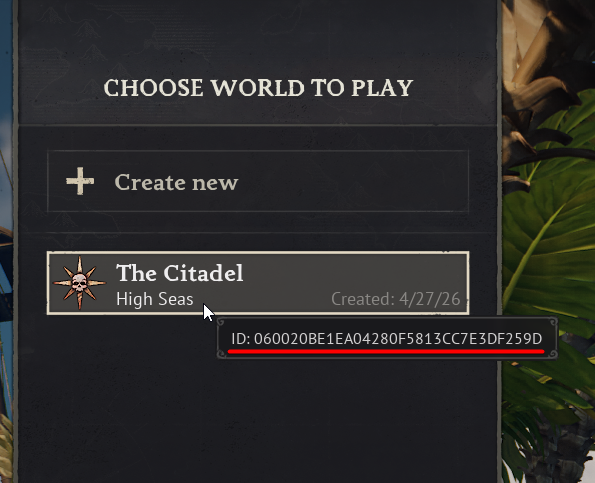
5. Upload your selected world folder to your server's world folder in the Files Manager in
"<Home>\R5\Saved\SaveProfiles\Default\RocksDB\0.10.0\Worlds"
You can follow our guide for FTP/SFTP here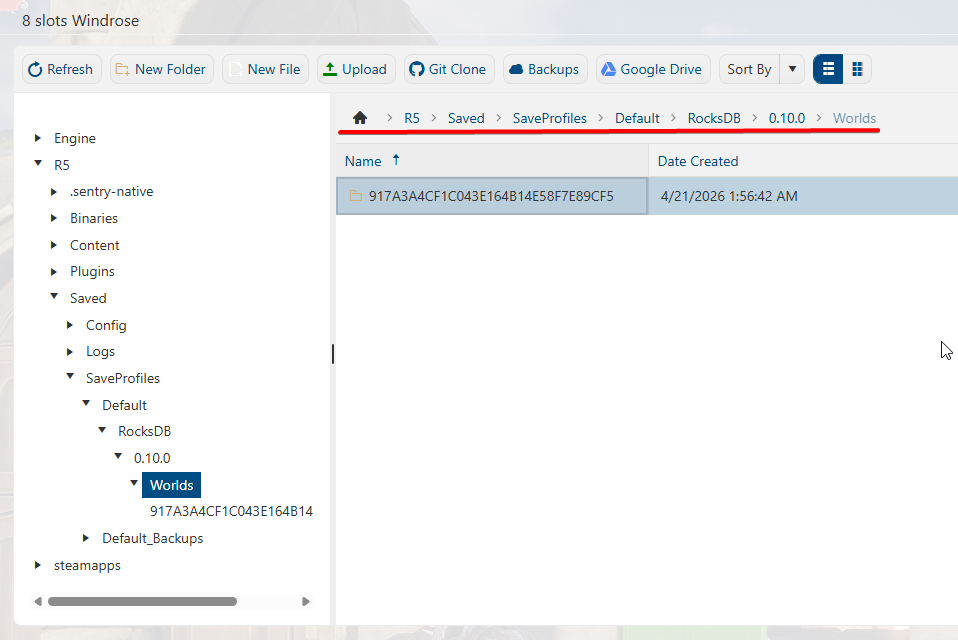
6. Once the world is uploaded to the Server Files.
Open the Configuration Files tab and change the "WorldIslandId" to the uploaded world's name in the main config.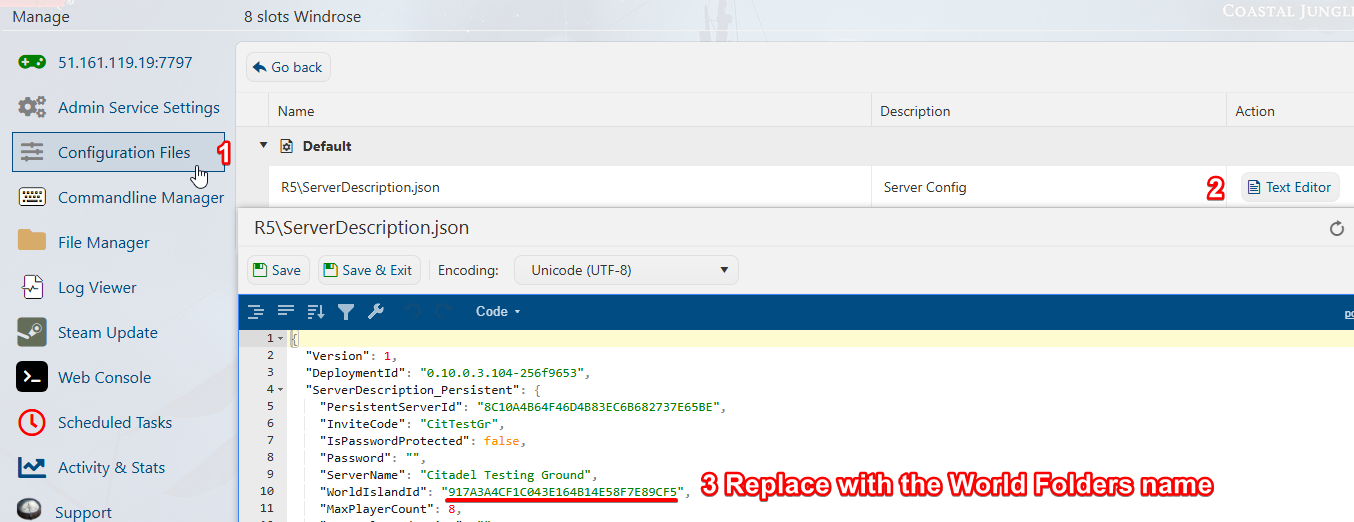
7. Click "save" when you are done editing, and you can now continue your save on your server.
Did the above information not work for you?
Please click here to contact our support via a ticket.