

This guide will help you learn how to upload prefabs to your Hytale Server.
Click here to order your Hytale server with Citadel Servers today!
Uploading prefabs to your Hytale server opens the door to building richer worlds, faster. Whether you're adding custom structures, expanding adventure zones, or streamlining your creative workflow, prefabs let you bring detailed designs into your server with ease. This introduction walks you through what prefabs are, why they matter, and how they fit into a smooth server‑building process so you can focus on crafting the experience your players will love.
NOTE: Uploading or spawning prefabs requires administrator permissions. For additional details, click here.
Uploading Prefabs on your Hytale Server
1. Log in to your Game Control Panel and navigate to your service.
2. Before making any modifications, stop the server from running by clicking the Stop button.

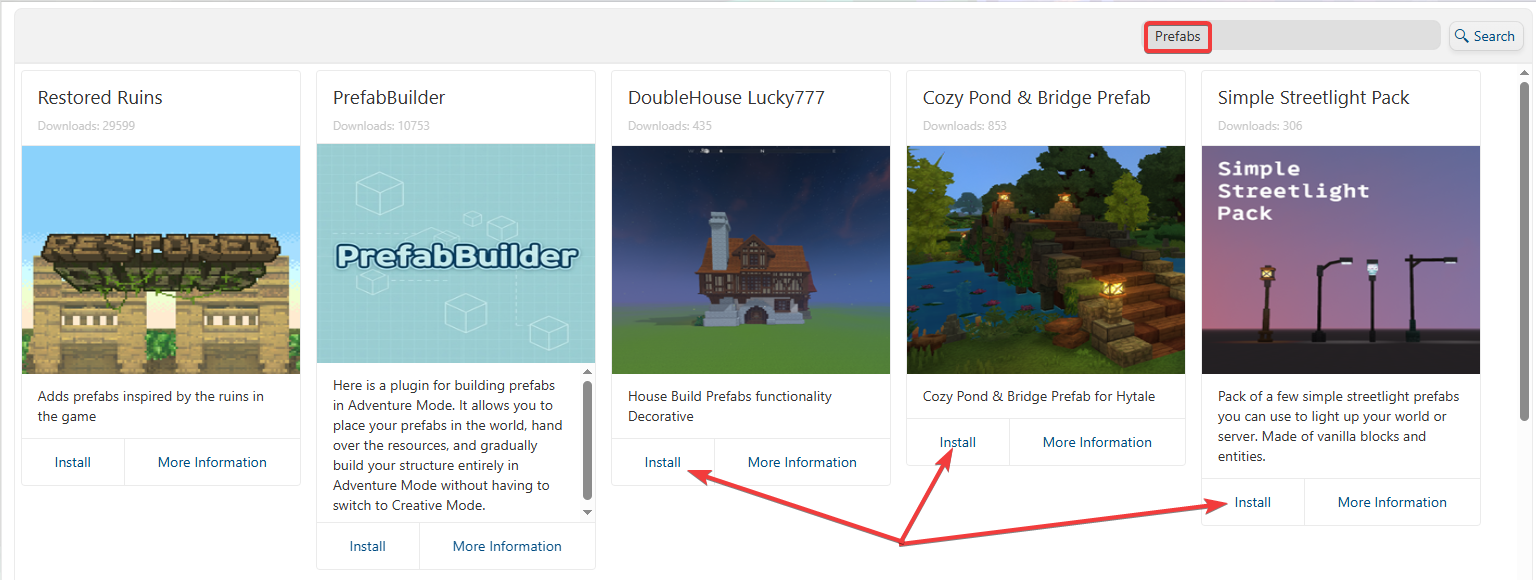
3. Navigate to the CurseForge Tab and install the desired prefab
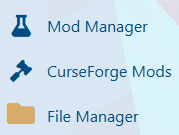
4. Navigate to the File Manager Tab.
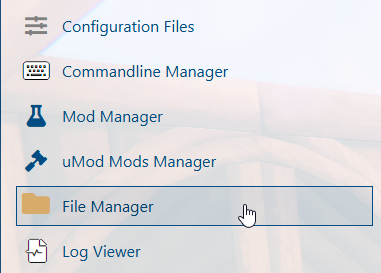
5. On the File Manager, click the Create button.
6. Name the folder prefabs, then click Create.
7. Open the prefabs directory to proceed.
8. Add your prefab by uploading the appropriate .zip file to the server.
9. Right‑click the file and choose Extract to unzip it.
(NOTE: Unzipped prefab files must end with .prefab.json to be recognized correctly.)
10. Start the server.

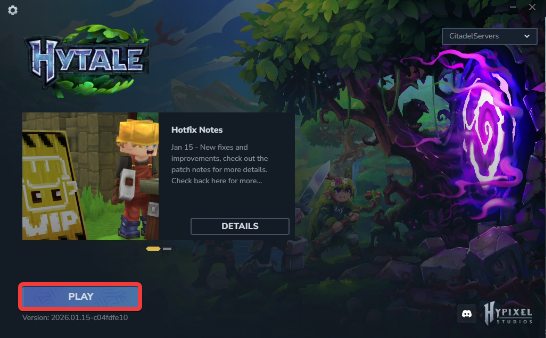
11. Launch Hytale and join the server.
12. Press Tab, then select Creative Tools from the menu.

13. Open the World menu and choose Prefab List.
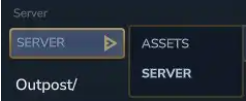
14. Click Assets, then choose Server from the location list.
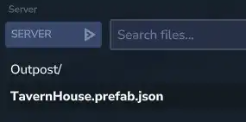
15. Click the uploaded prefab file to highlight it.
16. Press Spawn.

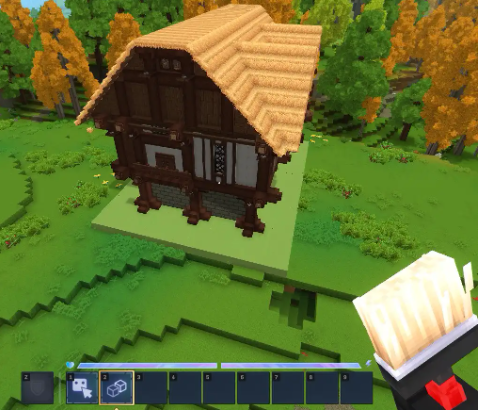
17. The player will receive the Paste Tool and can position the prefab as needed.
Did the above information not work for you?
Please click here to contact our support via a ticket.