

This guide will show you how to Authenticate your Hytale server.
Click here to order your Hytale server with Citadel Servers today!
Hytale dedicated servers must authenticate with Hytale’s online services to function correctly. Authentication allows your server to verify players, create game sessions, and communicate with Hytale’s backend systems. This guide walks you through authenticating a Hytale server using the built-in authentication commands, with a focus on the Device Authorization flow, which is ideal for servers without a graphical interface.
Important:
Each Hytale game license can authenticate up to 100 active servers at the same time. If you need to run more servers, you will need additional licenses or an approved provider entitlement.
Device Authorization (Recommended Method)
The device authorization method works on headless servers and does not require a browser on the server itself.
1. Log in to your Game Control Panel.
2. Navigate to the Web Console.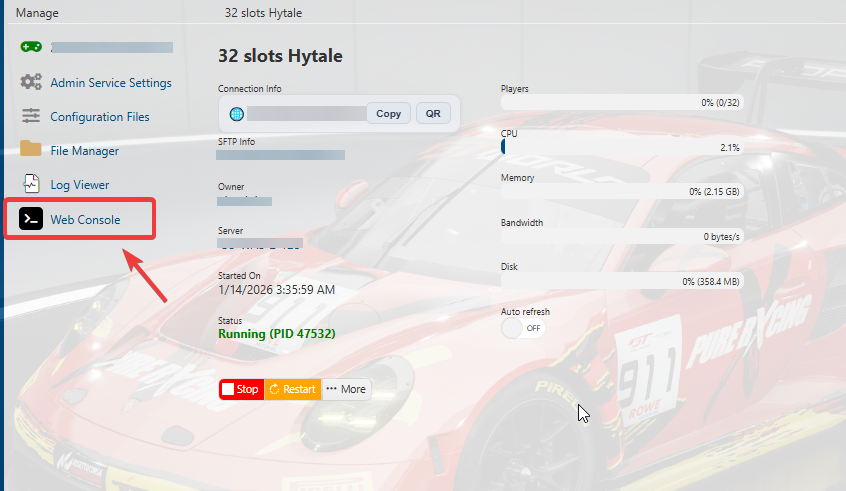
3: Initiate Login
In your server console, run:
/auth login device
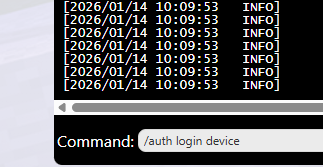
4. Open the Authorization Page
The console will display a message similar to the following:
============================================================DEVICE AUTHORIZATION============================================================Visit: https://accounts.hytale.com/deviceEnter code: ABCD-1234Or use: https://accounts.hytale.com/device?user_code=ABCD-1234============================================================Waiting for authorization (expires in 900 seconds)...

5: Approve the Server
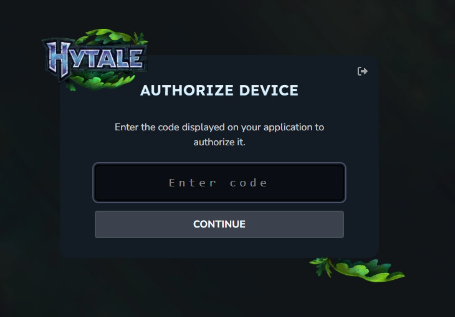
Open the provided link on any device with a web browser
Sign in to your Hytale account
Enter the authorization code (if prompted)
Confirm access for the server
6: Authentication Complete
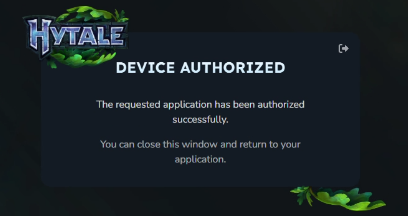
Once approved, your server console will confirm success, indicating the server is now authenticated and ready to accept players.Authentication successful! Mode: OAUTH_DEVICE
7. Run the command below in the web console:/auth persistence Encrypted
This will forever save the token/auth to the server.
All Set! You can then follow our Quick Start Guide.
Checking Authentication Status
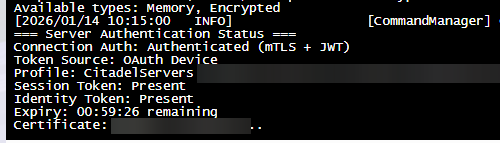
To confirm your server is authenticated, run:
This will display whether the server is currently logged in and authorized.
Authentication Commands Reference
| Command | Purpose |
|---|---|
/auth login device |
Starts device-based authentication (recommended) |
/auth login browser |
Starts browser-based login (requires desktop access) |
/auth select <number> |
Choose a profile if multiple accounts are detected |
/auth status |
Displays current authentication state |
/auth cancel |
Stops an active login attempt |
/auth logout |
Clears authentication data and logs out |
Authentication Token Behavior
Hytale uses OAuth tokens to maintain secure access. These tokens refresh automatically while the server remains online.
| Token Type | Valid Duration | Description |
|---|---|---|
| Access Token | ~1 hour | Used for session creation |
| Refresh Token | ~30 days | Renews access tokens |
| Game Session | ~1 hour | Automatically renewed before expiry |
As long as your server stays online, re-authentication is usually unnecessary.
Common Issues & Fixes
Authentication Failed at Startup
If the server starts without authentication, try the following:
1. Re-run /auth login device
2. Ensure the token has not expired
3. Verify the account has the correct permissions
When Re-Authentication Is Required
You may need to log in again if:
- The server was offline for over 30 days
- You manually logged out
- Account credentials were changed
Did the above information not work for you?
Please click here to contact our support via a ticket.