
This guide will show you how to upload your save to your HumanitZ Server
Order a HumanitZ Server today with Citadel Servers
1. Log in to your Game Control Panel.
2. Open the File Manager in the Control Panel.
Navigate to "<Home>/HumanitZServer/Saved/SaveGames/SaveList/Default".
Once here, upload the save files with the Upload Button.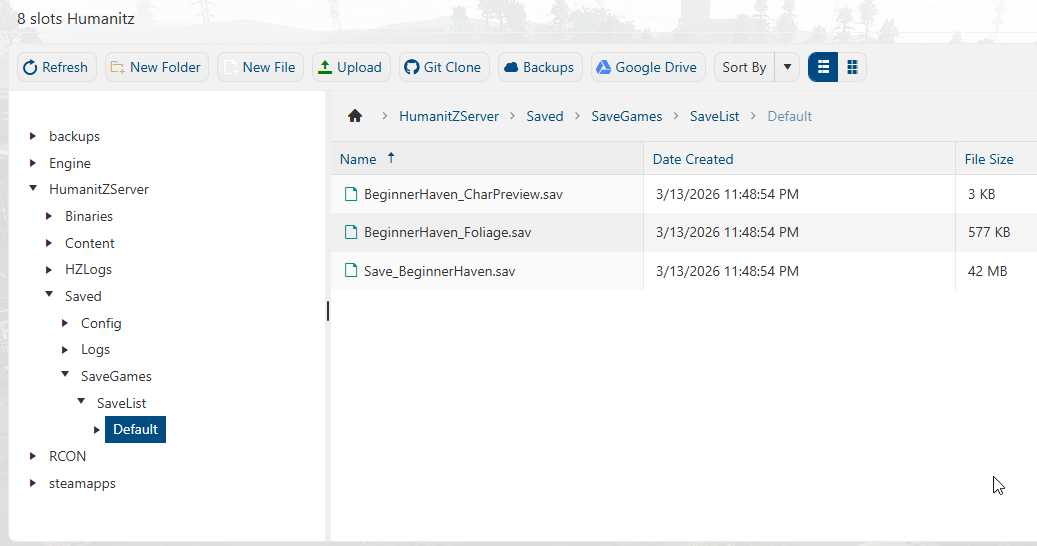
3. To get your local save files, open the AppData folder on your PC.
You can access it by pressing "Windows+R" to open the Run commands.
Then type "%LocalAppData%\Humanitz" to be redirected to the correct folder.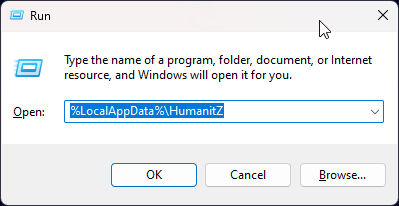
4. Your saves will be in the following directory:
AppData\Local\HumanitZ\Saved\SaveGames\SaveList
Select the save you want to use and then upload it to the server.
Keep a note of the Save's name as we will be using it on the next step.
5. Once uploaded, open the Configuration Files tab.
Open the GameServerSettings.ini file with the Text Editor button.
Find the "SaveName" line, and replace it with the name of your save file.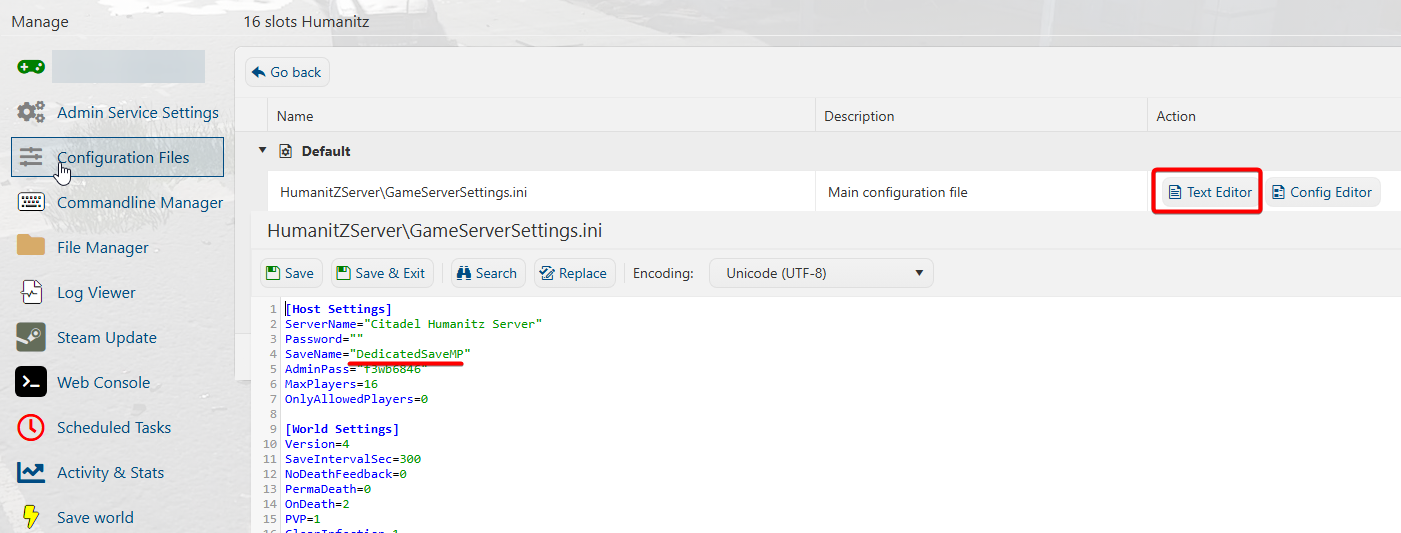
6. Make any additional changes you want, then click "Save".
You can now start the server and continue your saved file.
Did the above information not work for you?
Please click here to contact our support via a ticket.
Categories
Categories
Tag Cloud
2004
25565
7 days to die
7 Days to Die | Admin Commands
7 Days To Die How to configure serveradmincustom xml
7 Days to Die How To Install Mods
7 Days To Die How To Show Your Server In The Server List
7 Days To Die How To Upload Current World To The Server
7 Days To Die Setting Yourself As Admin
7 Days To Die Switch To Experimental Version
7D2D Hosting
7dtd
A New Reign Beta
AAPG
abberation
Aberration
Abiotic Factor
ACC Connector Tool
Active mods
Add Admins
Add Bots
Add Mods
Add Password
add server name
Add to Favorites
Add Workshop Mods
Adding Admin
Adding admins
Adding Bots
adding custom world
adding logo
adding maps
adding mods
adding password
adding plugins
Adjust Friend Fire
Adjust Player Limits
Adjusting Max Players
Adjusting Time
Adjusting Weather
admin
admin commands
admin guide
admin mod
admin only
Admin Password
Admin Permission
Admin Permissions
admin roles
Admin Tools
AdminCommands
Administration
AdminPassword
Admins
adventure
AFK Kick Timer
Agar.io
AI
AI amount
AI Drivers
Aim Assist
Air Drop
Air Drop Settings
All the mods
Allied Assault
America's Army 3
American Truck Simulator
Americas army proving grounds
Amissa
amount
Amounts
Animalia
Animalia Survival
Animals
anti-cheat
apex hosting
API
arguments
Ark
Ark ascended
ark asended
Ark automated messages
Ark cluster saved
ark configure
Ark disable Anti-Cheat
ARK Discord
ARK Discord bot
Ark Gamma
Ark Incubation
Ark Remote
Ark Spawn Rates
Ark Survival Ascended
ARK Survival Ascended Issues
Ark Survival Evolved
Ark survival evolved admin
Ark survival evolved backup
Ark survival of the fittest
Ark Whitelist
ARK: Survival Ascended
Arma
Arma 2
Arma 2 error
Arma 2 Mod
Arma 3
Arma 3 command list
Arma 3 Configuration
Arma 3 DLC
Arma 3 Mission
Arma 3 Mission file
Arma 3 mod
Arma 3 Mod install
Arma 3 Mods
Arma 3 Rcon
Arma 3 start guide
Arma Error
Arma reforger
arma reforger mod
Arma Update
ASA
ASA Backup
ASA Discord bot
ASA Map
ASA Ragnarok
ascended
aska
Assetto Corsa Competizione
Assist Rules
Astraeos
Astro Colony
Astroneer
atlas
Atlas commands
Atlas configuration
Atlast modding
authenticate
authentication
authentication token
Auto Pause
Auto-Save Interval
Automated messages
Automatic
Automatic Restarts
autosave
autosaves
Avorion
Avorion Beta
Avorion Configuration
Avorion startup
Backpack
Backpack Size
backup
ban
Ban Players
Bandit Events
Bank Settings
Bannerlord
Bannerlord Co-op Mod
Bannerlord coop
Banning Players
Barotraum Mod
Barotrauma
Barotrauma configuration
basic
Basic Configuration
Battalion 1944
Battle Cry of Freedom
Battle Cry of Freedom server
Battle grounds
Battlefield 1942
Battlefront classic
battlegrounds III
BattlEye
BCOF
BCOF Server
Beam
BeamMP
BeamNG
BeamNG.drive Multiplayer
BeamNGMP
beasts of bermuda
Becoming Admin
Becoming Admins
Becoming Invisible
bedrock
BepInEx
BepInEx Mods
beta
Beta 42.13
Beta access
beta version
bisect
bisect hosting
Black Mesa
Black Mesa mods
Blackwake
Blade
blue
blue fang solutions
Bot Management
Bots
branch
brickadia
Brickadia Save
Brickadia Upload
brown in list
BTW
build
Build Detorioration
Bukkit
Bukkit Plugins
Call of Duty 4
Campaign
Campaign Defaults
Campaign Settings
Carbon
Case-Opening Simulator
CastleDecay
Catching Animals
Cave Server
Cave Setup
Caves
Center map
change
Change DayZ Map
change map
change map in life is feudal
Change Mission
Change Password
Change Server Name
Change Server Password
Change Version
Change world
Changing Day Length
Changing Gamemode
Changing Gathering Rates
Changing Maps
character
Characters
Chat Commmands
Chat Limit
Cheat Mode
cheat protection
Cheat Settings
cheats
Chernarus
Chernarus Map
Chivalry
Chivalry Medieval Warfare
ChivalryMedievalWarfare
citadel servers
Citadel: Forged with fire
CitadelForgedWithFire
claim
Client Modifications
cluster
Cluster Server
cluster servers
Cluster Token
Clustered save Directory
clustering
clustering wurm unlimited servers
Cobblemon
Cod 4
COD4x
codes
Colony Survival
ColonySurvival
Color
Combat Difficulty
command
commandline
commands
commmands
Community Maps
Community Online Tools
conan
Conan Exiles
config files
configuraiton
configuration
Configure
Configure Loadouts
Configuring
Configuring AI
Configuring Day Length
Configuring Gathering Rates
connect
Connect to Project Zomboid Server
Connect to Server
connect with IP
Connecting Cluster
Connecting Servers
Connecting to server
connection
Connection guide
Console
console commands
Contaminated
Control Time
Control Weather
COOP
Coop Mod
Core Keeper
Corpse Loot Permission
corrupt
Counter Strike Global Offensive
Counter Strike: Source
Counter-Strike 2
counterstrike
CounterStrikeSource
Crafting
Crafting Modifiers
Crafting Speed
Craftopia
Crash
Create Galaxy
Create Items
Create Prospect
Create World
Creating Entities
Creating Instances
creative
Creative Mode
Creator Mode
Creature Modifiers
Cross-Play
Crossplay
Crossplay Enabled
Crossplay Option
Crossplay Options
CryoFall
crystal isles
CS:GO
CS:s
csgo
curseforge
custom
custom commands
Custom Difficulty Properties
custom map
custom maps
Custom Maps Bannerlord
custom mod
Custom Prefix Setup
Custom Roles
Custom Scenario
Custom Scenarios
Custom Server Ranks
Custom Time
custom world
Custom World File
customization
customize
Customizing Weather
Customizing World Settings
Dark and Light
DarkRP
data
database
Day Duration
Day Length
Day Length Settings
Day of defeat
Day of Defeat Source
Day Time
Day/Night Cycle
DayLengthSettings
Days of War
DaysofWar
Daytime
Dayz
DayZ Admin
DayZ Expansion mod
DayZ How to Join
DayZ Server
DayZ Server Change into Night mode
DayZ Server Configuration
DayZ Server How To Ban players
DayZ Server How To Change Login and Logout time
DayZ Server How to edit Gameplay Settings
DayZ Server How to remove Contaminated Areas
DayZ Server How To: Change Loot Amounts
DayZ Server How To: Custom Day Time Settings
DayZ Server How To: Install & Update Mods in Steam Workshop
DayZ Server How To: Install Community Online Tools & CF Admin To
DayZ settings
DayZ Snow
Dayz Standalone
Dayz weather
DeadLock
Death Notifications
Death Penalties
Death Penalty
Death Penalty Settings
dedicated
dedicated server
Dedicated Server Setup
DedicatedCustomServerHelper
Deer Isle
Deer Isle Map
Default Game Mode
Delete Data
Delete Save
Delete World
Deleting Prospects
Diagnostic Tools
difference
Difficulty
Difficulty Preset
Difficulty Settings
dino
dinosaur
dinosaur configuration
Direct Connect
direct connection
Disable
disable dino
Disable Fall Damage
disable mod
disable mods
Disable Raids
Disable Structure Collision
Disabling Auto Pause
Disabling Bandit Events
Disabling Death Notifications
Disabling Food Decay
Disabling Horde Events
Disabling Sleep
Discord
Discord Bot
dlc
DMZ
DoDS
Dog Companion
Dog Companion Settings
Don't Starve Together
dont starve
downgrade
download
dragonwilds
Drop Item
Drop Item Despawn Timer
Drop Item Max Value
DST
DST Upload Save
duckside
DXRP
Echoes of Elysium
ECO
Economy Override
Eden Star
edit
EFT
Egg Hatch Times
Empyrion
Empyrion Galactic Survival
Enable Cheats
enable mod
Enable mods
Enable Traitor
Enable Voice Chat
Enable Whitelist
Enable/Disable Aim Assist
Enabling Creative Mode
Enabling Fast Travel
Enemy Aggression
Enemy Deployable Damage
Enemy Health
Enemy Player Damage
Enemy Raids
Enemy Settings
Enemy Spawn Rate
engineers
Enshrouded
Enshrouded Help
Enshrouded Password
Entities
Environment Settings
Epoch mod
Error
error message
errors
Escape from Tarkov
Essentials
ESX
Eula.txt
Euro Truck
euro truck simulator 2
Event
Events Settings
Exclusive Users
Exile
EXP Rates
expansion
Experience Gain
Experience Rate
experimental
Export Structures
extinction
Extinction map
fabric
Facction
Factorio
fail
Fall Damage
fang
Fast Download
Fast Travel
FastDL
Fatigue Rate
FIKA
file format
file manager
File name
File Transfer Protocol
file validation
file verification
Filezilla
find server
First Person
Fishing Difficulty Rate
five reborn
five reborn commands
fivem
Fix
Fixing Steam Update Error
fjordur
Flat World
Food Decay
Food Settings
force
Force Save
forest
forge
Forglar
Forglar Premium
Format
foundry
fragnet
Freeze Time
Friend
Friendly Fire
FSX
FTP
fxserver
g portal
Galactic
Galactic Survival
Galactineers
Game Difficulty
Game Length
game mode
game mode change
Game Modes
Game Panel
Game panel Resolutions
Game Pass
Game Reseller
game server
Game Setting Preset
Game Switching
game version
gamemode
Gamemodes
gamepanel
Gameplay
gameservers.com
garry's
Garrysmod
Garrysmod steam workshop
Gathering Rate
Gathering Rates
Generate Server Token
Generating World Size and Random Respawn
genesis
genesis 2
Genesis DLC
getting started
GG servers
global offensive
GLST
gm
GM Tool
gmod
Gmod Gamemode
Go Invisible
Gondwa
GRAV
Grav Admin Commands
grayed out
Ground Branch
gslt
GTA
gta 5 rage multiplayer
GTA IV
GTA IV Multiplayer
GTA V
gta5ragemp
GTAV
gtx servers
GUI
GUID
guide
Guild Settings
half life
Half life 2 Deathmatch
Hard Reset
Hardcore Mode
Harvest Rates
Header Image
HeartLimit
heat
Hellion
help
Helper
HL2DM
Hogwarp MP
Hogwarts
hollow
hollow knight
Horde Events
Horde Frequency
host
host havoc
Hosting
Housing Plot Rental
how
how to
How to add a password in Enshrouded Server
how to add mods
How to Become Admin
How to Become Admin in Rust Servers
How to change server weather in Dayz
how to cnnect
how to connect
How to connect to Garry's Mod servers using the IP Adress
How to connect to OpenTTD Server
How to connect to Portal Knights server
How to Connect to Project Zomboid
How to Connect to Valheim Server
How to connect to your Ark Survival Evolved Server
How to create Warps
how to enable
how to guide
how to host
how to host ARK Survival Evolved
How to host arma 3
How to Join
how to join necesse
How to Join Project Zomboid Server
How To Join Your Sons Of The Forest Server
How to Kick and Ban Players in your Palworld game server
How to Remove Valheim Plus
How to set a password
How to set yourself as an Admin in Necesse
how to thost
how to update
how to upload custom maps in mount and blade bannerlord
HumanitZ
HumanitZ commands
Hunger Rate
Hunger Rates
Hunger Settings
Hurtworld
Hytale
Hytale connection
Hytale Mods
hytale Server
Icarus
Icarus Gameplay
IceCon
ICMP
Id list
III
import
Import Structures
In-Game Configurations
In-game Server List
increase
Infection on Death
Infection on Death Settings
Install
Install Maps
install mods
Install Valheim Plus
Installation
installing custom map
installing mods
instance issues
Instances
Instant Travel
insurgency
insurgency sandstorm
Insurgency Standalone
Intercom Settings
Interstellar Rift
InterstellarRift
Invisibility
ip address
IP Tables
isle
Issues
Item Durability Settings
Item ID
Item list
item spawn
Item Stack Limit
Item Stack Size
Items
IWBUMS
Jedi Academy
Jedi Knight Jedi Academy
join
join button missing
Join Server
Join to Server
joining a server
Joining the server
json
KAG
Karma Settings
Kenshi
Kenshi OM
Kenshi Online Multiplayer
KF2
kick
Kick players
Killing Floor 2
King Arthur's Gold
King Arthurs Gold
Kit color
knights
l4d
L4D2
lag
Left 4 dead 2
legacy
Legacy version
less slots
Level
License
License Key
licensekey
Life is feudal
life is feudal your own
Linux
list
Livonia
Livonia Map
Load not loading
Loading Prospects
Loadouts
local download
local save upload
logic servers
Login
login token
Logout
longvinter
Loot
Loot Respawn
Loot Respawn Settings
Loot Settings
Lord of the Rings Return to Moria
lost island
LOTR:Return to Moria
LOTR:RM hosting
Lua Errors
LuckPerms
mac
Managing Player Count
Mania Planet
manual
Manual Backup Restoration
manual mod installation
manual mods
map
map change
map cycle
map installation
map list
Map pool
map rotation
Map Seed
Map Settings
Map Spawn Selection
map viewer
Maps
Master
Max Bases
Max Housing Plot Rentals
Max Players
Max Players Settings
Max Tribe Members
Max Vehicle per Player
Max View Distance
Max Worker Pals
Max World Size
mc
Medal of Honor
medieval
medieval engineers
Memories
message of the day
MetaMod
Metaverse
Migrate
migration
Minecraaft
Minecraft
minecraft bedrock
Minecraft Connect
Mining Drops
mirror
Miscreated
Mission
Mobile Version
Mod
mod install
Mod Installation
Mod Manager
Mod Update
Modded Vehicles
modding
mode
Moderators
Modify EXP Rates
Modify Tribe Members
Modifying Day Length
Modifying Gathering Rates
Modifying Hunger Rates
Modifying Thirst Rates
Modpack
Modpacks
Mods
MOE
Mordhau
motd
Motor Town: BTW
Mount
Mount & Blade 2: Bannerlord Server
Mount & Blade II
Mount & Blade: Warband
Mount and Blade
Mount and Blade 2
Mount and Blade 2 Bannerlord
Mount and Blade Bannerlord
Mounting Content
Move Player Data
Move Saved File
Mow-The-Lawn Game
multiplier
Multipliers
Mumble
MX Bikes
mysql
Myth of Empires
Natural Selection
Natural Selection 2
Necesse
Necesse admin
Necesse Configuration
Necesse custom map
Necesse custom world
Necesse Error
Necesse How To Become Admin
necesse join server
Necesse password
necesse private server
Necesse save
Necesse save file
Necesse Server Configuration
Necesse Settings
neoforge
New Prospect
new round
New World
Night Mode
Night Time Acceleration
Night/Day Settings
nitrado
nitrox
Nitrox Mod
no one survived
nodecraft
not showing
not starting
Novice Protection
object issue
Online map
online map viewer
OpenRCT2
OpenTTD
Outlaws of the old west
Owner ID
Oxide
Oxide Mod
paht of titans
Pal Stats
Palbox
Palbox Settings
Palworld
Palworld ban
Palworld Player Management
palworld reset
Palworld Server Configuration
Palworld Update
paper
password
patch
path
path of titans
Patrol Frequency
PC
Peaceful Mode
penGUIn
Permadeath Settings
permissions
Permissions List
persistent
persistent worlds
phpmyadmin
PING
ping perfect
PixArk
Pixelmon
Player Capacity
Player Count
Player Data
Player Death Penalties
Player Death Settings
Player Loadouts
Player Respawn Settings
Player Stat
Player Stats
Player Vs Environment
PlayerData Reset
players
playlist
Playstation
PlayStyle
plugin
Plugin Installation
Plugins
Plugins Installation
Pluton
police mods
PORT
Port forwarding
portal
Portal Knights
Prefabs
preload
Preset
Price Adjustments
Price Ratio
Privacy
Private
progression
Project
Project Zomboid
Property Purchase
Property Sale
Prospects
ps4
ps5
Purchase Properties
Purpur
PVE
PVP
PVP Settings
pz
quake
quake live
quake live server
Qucikstart
Quick Guide
quick start
Quickstart
Quickstart Guide
R CON
RaceRoom
ragnarok
raid
Raid Times
Raids
Randomizer
Rates
Rating Requirements
RCON
rcon command
Reborn
Recipes and Talents
Red dead redemption
Red Dead Redemption 2
RedM
reference not set
Reforger
Region
Reign of Kings
reinstall
Reinstall 7 days to die server
Remove
Remove Players
rescue
Reseller
reset
reset guide
ResetSave
Resource Gathering
Resource Gathering Multiplier
Respawn
Respawn Settings
Restocking Rates
restore
Restore Timestamp
Return to Moria server
Riftbreakers
Rimworld Together
Rimworld Together Server
ROK
roles
roles of configurations
romestead
Rules
Runecape
Runescap
runescape
Runescape Dragonwilds
Rust
rustadmin
rusty
S.O.G. Prairie Fire DLC
S&box
S&Business
Sakhal
Sandbox
satisfactory
save
Save Intervals
save uploads
Saved
Saved Directory
Saved File
Saved progress
Saves
scalacube
Scenario
scene
Schedule
Schedule 1
Schedule 1 Multiplayer
schedule I
Scheduled Task
scheduled tasks
Scorched
scorched earth
SCP: 5K
SCP: Secret Laboratory
SCUM
Season Length
self kick
Sell Properties
server
Server account
server claim
server commands
Server Config Necesse
server configuration
Server Configurations
Server Description
Server Difficulty
Server GUID
server list
Server Map
Server Messages
server migration
Server Name
Server not loading world
Server not showing
Server Not Starting
server not working
Server Password
Server Ranks
Server Region
Server Restarts
Server Settings
server setup
Server Token
Server Update
Server Version
Server Won't Start
server wont start
server.pro
serveradmincustom
serverlist
ServerName
Set a password
Set admins for Valheim
Set Password
Set to Private
Set Up Fast Downloads
Set yourself as admin in Valheim
Setting Permissions
Setting Up Events
Settings
setup
setup dlc
setup guide
SFTP
shockbyte
Shootmania
show
Siege Frequency
silkless
silksong
Simulator
Single Player Tarkov
Siptah
skycoop mod
Skyrim Together
skyrim together reborn
Sleep Deprivation Settings
sleepsettings
slots
Smalland Survive the Wilds
SOF2
Soft Reset
Soldier of Fortune 2
Soldier of Fortune dedicated server
solutions
Sons of the Forest
SOTF
Soul Mask
soulmask
Source
SourceCOOP
SourceMod
Space Engineers
Space Station 14
Spark Mod
Spawn Creatures
Spawn Items
Spawn Protection
Spawn Special Zombie
Spawn Vehicles
Spawn Weapons
Spawning Creatures
Spawning Entities
Spawning Instances
Spawning Items
Spearhead
SPT
SPT FIKA
Squad
SRV Record
SS14
Staging Branch
standstorm
star rupture
Star wars
Star Wars Battlefront Classic
Star Wars Battlefront Classic 2
Star Wars: Jedi Academy
star-made.org
Starbound
Stardew Valley
Starmade
start
Start Guide
Start Project Zomboid
starter guide
Starting Weapon
Startup Error
Starwars classic
stat edit
Stationeers
Stats
Staxel
Steam
Steam Community Group
Steam Group ID
Steam ID
Steam server list
Steam Update
Steam Update Error
Steam Update Issue
Steam Workshop
Stop Time
stormworks
Storyteller
Structural Damage
Structures
Stuck in Terrain
Stuck Player
Subnautica
subnautica 2
Subnautica server
subsistence
subuser
Sunkenland
Sunkenlands
Survivability Difficulty
Survival
survival server
Survival Settings
Swap
Swat 4
switch
Switch Map
switch to beta
Switching
Switching Game Modes
Switching Gamemode
Task
tcadmin
team fortress 2
Team Fortress Classic
Team Size
TeamSpeak 3
Teleport
Temptress Lagoon
Tent Decay
Terraria
Terraria Change Difficulty
Terraria Server Description
TF2
TFC
the center
the forest
The Front
The Front How to Connect to your server
The Isle
the long dark
The Long Dark: SkyCoop Mod
The Riftbreakers
TheIsle
third party
Third Person
Thirst Rate
Thirst Rates
Time
Time Management
timezone
titans
tModLoader
to
Toggle PvP Settings
Token
Token generation
Tools
Torch
Trace Route
tracert
TrackMania
Trader Reset Times
Trader Services
Traitor Settings
Tree Regrowth
troubleshoot
Troubleshooting
Truck
tshock
ULIB
ulx
Unable to Move
unban
Unban Players
Uninstall
Uninstall Valheim Plus
Unreal Tournament
Unreal Tournament 1999
Unreal Tournament 2004
unreal tournament 3
Unreal Tournament III
Unturned
update
Update Mods
Update Project Zomboid
update vintage story
Update Workshop
upload
upload files
upload save
Upload World
Uploading Custom World
Uploading Prefabs
Uploading save
uploading saves
uploading world
uploading worlds
URL
user management
user permissions
UT2004
UT99
V Rising
V Rising Admin
V Rising Configuration
V Rising Mods
V-Rising
valguero
Valguero ASA
Valheim
Valheim Mods
Valheim plus
Valheim Server Update
Valheim World Seed
Vein
veloren
version
version switch
View Distance
Vintage Story
vintage story update
VPS
VRisig
VRising
VRP
VS
Waiting for host
Warband
Warps
Wasteland
we have a guide here showing you how to do this here: https://ci
Weapon Durability
Weather
Weather Conditions
Weather Management
Web Console issue
webconsole
Welcome Message
White Blank Box
whitelist
Whitelisting
windrose
wipe
wipe player data
Workshop
workshop mods
Workshop Scenario
world
World Configuration
World Difficulty
World Drops
world generation
World Generation Seed
World Modifiers
World Seed
World Settings
world size
World Type
World upload
worlds
Wrong location
wurm
Wurm unlimited
X gaming
Xbox
xml
XP Rates
Ylands
Zombie Settings
Zombie Spawn Rate
Zomboid
How to Upload your Local Save to your Humanitz Server Print
- HumanitZ, Upload, Save
- 0
Was this answer helpful?
Related Articles
How to Become an Admin on your Humanitz Server
This guide will show you how to become an Admin on your HumanitZ ServerOrder a HumanitZ Server...
How to Configure your Humanitz Server Settings
This guide will show you how to configure your HumanitZ ServerOrder a HumanitZ Server today with...
How to Edit AI Difficulty Settings on Your HumanitZ Server
This guide will walk you through how to adjust AI difficulty settings on your HumanitZ...
How to Change PvP Settings on Your HumanitZ Server
This guide will show you how to modify PvP settings on your HumanitZ server.Click here to order...
How to Adjust Season Settings on Your Humanitz Server
This guide will walk you through adjusting season settings on your HumanitZ server.Click here to...
Tag Cloud
2004
25565
7 days to die
7 Days to Die | Admin Commands
7 Days To Die How to configure serveradmincustom xml
7 Days to Die How To Install Mods
7 Days To Die How To Show Your Server In The Server List
7 Days To Die How To Upload Current World To The Server
7 Days To Die Setting Yourself As Admin
7 Days To Die Switch To Experimental Version
7D2D Hosting
7dtd
A New Reign Beta
AAPG
abberation
Aberration
Abiotic Factor
ACC Connector Tool
Active mods
Add Admins
Add Bots
Add Mods
Add Password
add server name
Add to Favorites
Add Workshop Mods
Adding Admin
Adding admins
Adding Bots
adding custom world
adding logo
adding maps
adding mods
adding password
adding plugins
Adjust Friend Fire
Adjust Player Limits
Adjusting Max Players
Adjusting Time
Adjusting Weather
admin
admin commands
admin guide
admin mod
admin only
Admin Password
Admin Permission
Admin Permissions
admin roles
Admin Tools
AdminCommands
Administration
AdminPassword
Admins
adventure
AFK Kick Timer
Agar.io
AI
AI amount
AI Drivers
Aim Assist
Air Drop
Air Drop Settings
All the mods
Allied Assault
America's Army 3
American Truck Simulator
Americas army proving grounds
Amissa
amount
Amounts
Animalia
Animalia Survival
Animals
anti-cheat
apex hosting
API
arguments
Ark
Ark ascended
ark asended
Ark automated messages
Ark cluster saved
ark configure
Ark disable Anti-Cheat
ARK Discord
ARK Discord bot
Ark Gamma
Ark Incubation
Ark Remote
Ark Spawn Rates
Ark Survival Ascended
ARK Survival Ascended Issues
Ark Survival Evolved
Ark survival evolved admin
Ark survival evolved backup
Ark survival of the fittest
Ark Whitelist
ARK: Survival Ascended
Arma
Arma 2
Arma 2 error
Arma 2 Mod
Arma 3
Arma 3 command list
Arma 3 Configuration
Arma 3 DLC
Arma 3 Mission
Arma 3 Mission file
Arma 3 mod
Arma 3 Mod install
Arma 3 Mods
Arma 3 Rcon
Arma 3 start guide
Arma Error
Arma reforger
arma reforger mod
Arma Update
ASA
ASA Backup
ASA Discord bot
ASA Map
ASA Ragnarok
ascended
aska
Assetto Corsa Competizione
Assist Rules
Astraeos
Astro Colony
Astroneer
atlas
Atlas commands
Atlas configuration
Atlast modding
authenticate
authentication
authentication token
Auto Pause
Auto-Save Interval
Automated messages
Automatic
Automatic Restarts
autosave
autosaves
Avorion
Avorion Beta
Avorion Configuration
Avorion startup
Backpack
Backpack Size
backup
ban
Ban Players
Bandit Events
Bank Settings
Bannerlord
Bannerlord Co-op Mod
Bannerlord coop
Banning Players
Barotraum Mod
Barotrauma
Barotrauma configuration
basic
Basic Configuration
Battalion 1944
Battle Cry of Freedom
Battle Cry of Freedom server
Battle grounds
Battlefield 1942
Battlefront classic
battlegrounds III
BattlEye
BCOF
BCOF Server
Beam
BeamMP
BeamNG
BeamNG.drive Multiplayer
BeamNGMP
beasts of bermuda
Becoming Admin
Becoming Admins
Becoming Invisible
bedrock
BepInEx
BepInEx Mods
beta
Beta 42.13
Beta access
beta version
bisect
bisect hosting
Black Mesa
Black Mesa mods
Blackwake
Blade
blue
blue fang solutions
Bot Management
Bots
branch
brickadia
Brickadia Save
Brickadia Upload
brown in list
BTW
build
Build Detorioration
Bukkit
Bukkit Plugins
Call of Duty 4
Campaign
Campaign Defaults
Campaign Settings
Carbon
Case-Opening Simulator
CastleDecay
Catching Animals
Cave Server
Cave Setup
Caves
Center map
change
Change DayZ Map
change map
change map in life is feudal
Change Mission
Change Password
Change Server Name
Change Server Password
Change Version
Change world
Changing Day Length
Changing Gamemode
Changing Gathering Rates
Changing Maps
character
Characters
Chat Commmands
Chat Limit
Cheat Mode
cheat protection
Cheat Settings
cheats
Chernarus
Chernarus Map
Chivalry
Chivalry Medieval Warfare
ChivalryMedievalWarfare
citadel servers
Citadel: Forged with fire
CitadelForgedWithFire
claim
Client Modifications
cluster
Cluster Server
cluster servers
Cluster Token
Clustered save Directory
clustering
clustering wurm unlimited servers
Cobblemon
Cod 4
COD4x
codes
Colony Survival
ColonySurvival
Color
Combat Difficulty
command
commandline
commands
commmands
Community Maps
Community Online Tools
conan
Conan Exiles
config files
configuraiton
configuration
Configure
Configure Loadouts
Configuring
Configuring AI
Configuring Day Length
Configuring Gathering Rates
connect
Connect to Project Zomboid Server
Connect to Server
connect with IP
Connecting Cluster
Connecting Servers
Connecting to server
connection
Connection guide
Console
console commands
Contaminated
Control Time
Control Weather
COOP
Coop Mod
Core Keeper
Corpse Loot Permission
corrupt
Counter Strike Global Offensive
Counter Strike: Source
Counter-Strike 2
counterstrike
CounterStrikeSource
Crafting
Crafting Modifiers
Crafting Speed
Craftopia
Crash
Create Galaxy
Create Items
Create Prospect
Create World
Creating Entities
Creating Instances
creative
Creative Mode
Creator Mode
Creature Modifiers
Cross-Play
Crossplay
Crossplay Enabled
Crossplay Option
Crossplay Options
CryoFall
crystal isles
CS:GO
CS:s
csgo
curseforge
custom
custom commands
Custom Difficulty Properties
custom map
custom maps
Custom Maps Bannerlord
custom mod
Custom Prefix Setup
Custom Roles
Custom Scenario
Custom Scenarios
Custom Server Ranks
Custom Time
custom world
Custom World File
customization
customize
Customizing Weather
Customizing World Settings
Dark and Light
DarkRP
data
database
Day Duration
Day Length
Day Length Settings
Day of defeat
Day of Defeat Source
Day Time
Day/Night Cycle
DayLengthSettings
Days of War
DaysofWar
Daytime
Dayz
DayZ Admin
DayZ Expansion mod
DayZ How to Join
DayZ Server
DayZ Server Change into Night mode
DayZ Server Configuration
DayZ Server How To Ban players
DayZ Server How To Change Login and Logout time
DayZ Server How to edit Gameplay Settings
DayZ Server How to remove Contaminated Areas
DayZ Server How To: Change Loot Amounts
DayZ Server How To: Custom Day Time Settings
DayZ Server How To: Install & Update Mods in Steam Workshop
DayZ Server How To: Install Community Online Tools & CF Admin To
DayZ settings
DayZ Snow
Dayz Standalone
Dayz weather
DeadLock
Death Notifications
Death Penalties
Death Penalty
Death Penalty Settings
dedicated
dedicated server
Dedicated Server Setup
DedicatedCustomServerHelper
Deer Isle
Deer Isle Map
Default Game Mode
Delete Data
Delete Save
Delete World
Deleting Prospects
Diagnostic Tools
difference
Difficulty
Difficulty Preset
Difficulty Settings
dino
dinosaur
dinosaur configuration
Direct Connect
direct connection
Disable
disable dino
Disable Fall Damage
disable mod
disable mods
Disable Raids
Disable Structure Collision
Disabling Auto Pause
Disabling Bandit Events
Disabling Death Notifications
Disabling Food Decay
Disabling Horde Events
Disabling Sleep
Discord
Discord Bot
dlc
DMZ
DoDS
Dog Companion
Dog Companion Settings
Don't Starve Together
dont starve
downgrade
download
dragonwilds
Drop Item
Drop Item Despawn Timer
Drop Item Max Value
DST
DST Upload Save
duckside
DXRP
Echoes of Elysium
ECO
Economy Override
Eden Star
edit
EFT
Egg Hatch Times
Empyrion
Empyrion Galactic Survival
Enable Cheats
enable mod
Enable mods
Enable Traitor
Enable Voice Chat
Enable Whitelist
Enable/Disable Aim Assist
Enabling Creative Mode
Enabling Fast Travel
Enemy Aggression
Enemy Deployable Damage
Enemy Health
Enemy Player Damage
Enemy Raids
Enemy Settings
Enemy Spawn Rate
engineers
Enshrouded
Enshrouded Help
Enshrouded Password
Entities
Environment Settings
Epoch mod
Error
error message
errors
Escape from Tarkov
Essentials
ESX
Eula.txt
Euro Truck
euro truck simulator 2
Event
Events Settings
Exclusive Users
Exile
EXP Rates
expansion
Experience Gain
Experience Rate
experimental
Export Structures
extinction
Extinction map
fabric
Facction
Factorio
fail
Fall Damage
fang
Fast Download
Fast Travel
FastDL
Fatigue Rate
FIKA
file format
file manager
File name
File Transfer Protocol
file validation
file verification
Filezilla
find server
First Person
Fishing Difficulty Rate
five reborn
five reborn commands
fivem
Fix
Fixing Steam Update Error
fjordur
Flat World
Food Decay
Food Settings
force
Force Save
forest
forge
Forglar
Forglar Premium
Format
foundry
fragnet
Freeze Time
Friend
Friendly Fire
FSX
FTP
fxserver
g portal
Galactic
Galactic Survival
Galactineers
Game Difficulty
Game Length
game mode
game mode change
Game Modes
Game Panel
Game panel Resolutions
Game Pass
Game Reseller
game server
Game Setting Preset
Game Switching
game version
gamemode
Gamemodes
gamepanel
Gameplay
gameservers.com
garry's
Garrysmod
Garrysmod steam workshop
Gathering Rate
Gathering Rates
Generate Server Token
Generating World Size and Random Respawn
genesis
genesis 2
Genesis DLC
getting started
GG servers
global offensive
GLST
gm
GM Tool
gmod
Gmod Gamemode
Go Invisible
Gondwa
GRAV
Grav Admin Commands
grayed out
Ground Branch
gslt
GTA
gta 5 rage multiplayer
GTA IV
GTA IV Multiplayer
GTA V
gta5ragemp
GTAV
gtx servers
GUI
GUID
guide
Guild Settings
half life
Half life 2 Deathmatch
Hard Reset
Hardcore Mode
Harvest Rates
Header Image
HeartLimit
heat
Hellion
help
Helper
HL2DM
Hogwarp MP
Hogwarts
hollow
hollow knight
Horde Events
Horde Frequency
host
host havoc
Hosting
Housing Plot Rental
how
how to
How to add a password in Enshrouded Server
how to add mods
How to Become Admin
How to Become Admin in Rust Servers
How to change server weather in Dayz
how to cnnect
how to connect
How to connect to Garry's Mod servers using the IP Adress
How to connect to OpenTTD Server
How to connect to Portal Knights server
How to Connect to Project Zomboid
How to Connect to Valheim Server
How to connect to your Ark Survival Evolved Server
How to create Warps
how to enable
how to guide
how to host
how to host ARK Survival Evolved
How to host arma 3
How to Join
how to join necesse
How to Join Project Zomboid Server
How To Join Your Sons Of The Forest Server
How to Kick and Ban Players in your Palworld game server
How to Remove Valheim Plus
How to set a password
How to set yourself as an Admin in Necesse
how to thost
how to update
how to upload custom maps in mount and blade bannerlord
HumanitZ
HumanitZ commands
Hunger Rate
Hunger Rates
Hunger Settings
Hurtworld
Hytale
Hytale connection
Hytale Mods
hytale Server
Icarus
Icarus Gameplay
IceCon
ICMP
Id list
III
import
Import Structures
In-Game Configurations
In-game Server List
increase
Infection on Death
Infection on Death Settings
Install
Install Maps
install mods
Install Valheim Plus
Installation
installing custom map
installing mods
instance issues
Instances
Instant Travel
insurgency
insurgency sandstorm
Insurgency Standalone
Intercom Settings
Interstellar Rift
InterstellarRift
Invisibility
ip address
IP Tables
isle
Issues
Item Durability Settings
Item ID
Item list
item spawn
Item Stack Limit
Item Stack Size
Items
IWBUMS
Jedi Academy
Jedi Knight Jedi Academy
join
join button missing
Join Server
Join to Server
joining a server
Joining the server
json
KAG
Karma Settings
Kenshi
Kenshi OM
Kenshi Online Multiplayer
KF2
kick
Kick players
Killing Floor 2
King Arthur's Gold
King Arthurs Gold
Kit color
knights
l4d
L4D2
lag
Left 4 dead 2
legacy
Legacy version
less slots
Level
License
License Key
licensekey
Life is feudal
life is feudal your own
Linux
list
Livonia
Livonia Map
Load not loading
Loading Prospects
Loadouts
local download
local save upload
logic servers
Login
login token
Logout
longvinter
Loot
Loot Respawn
Loot Respawn Settings
Loot Settings
Lord of the Rings Return to Moria
lost island
LOTR:Return to Moria
LOTR:RM hosting
Lua Errors
LuckPerms
mac
Managing Player Count
Mania Planet
manual
Manual Backup Restoration
manual mod installation
manual mods
map
map change
map cycle
map installation
map list
Map pool
map rotation
Map Seed
Map Settings
Map Spawn Selection
map viewer
Maps
Master
Max Bases
Max Housing Plot Rentals
Max Players
Max Players Settings
Max Tribe Members
Max Vehicle per Player
Max View Distance
Max Worker Pals
Max World Size
mc
Medal of Honor
medieval
medieval engineers
Memories
message of the day
MetaMod
Metaverse
Migrate
migration
Minecraaft
Minecraft
minecraft bedrock
Minecraft Connect
Mining Drops
mirror
Miscreated
Mission
Mobile Version
Mod
mod install
Mod Installation
Mod Manager
Mod Update
Modded Vehicles
modding
mode
Moderators
Modify EXP Rates
Modify Tribe Members
Modifying Day Length
Modifying Gathering Rates
Modifying Hunger Rates
Modifying Thirst Rates
Modpack
Modpacks
Mods
MOE
Mordhau
motd
Motor Town: BTW
Mount
Mount & Blade 2: Bannerlord Server
Mount & Blade II
Mount & Blade: Warband
Mount and Blade
Mount and Blade 2
Mount and Blade 2 Bannerlord
Mount and Blade Bannerlord
Mounting Content
Move Player Data
Move Saved File
Mow-The-Lawn Game
multiplier
Multipliers
Mumble
MX Bikes
mysql
Myth of Empires
Natural Selection
Natural Selection 2
Necesse
Necesse admin
Necesse Configuration
Necesse custom map
Necesse custom world
Necesse Error
Necesse How To Become Admin
necesse join server
Necesse password
necesse private server
Necesse save
Necesse save file
Necesse Server Configuration
Necesse Settings
neoforge
New Prospect
new round
New World
Night Mode
Night Time Acceleration
Night/Day Settings
nitrado
nitrox
Nitrox Mod
no one survived
nodecraft
not showing
not starting
Novice Protection
object issue
Online map
online map viewer
OpenRCT2
OpenTTD
Outlaws of the old west
Owner ID
Oxide
Oxide Mod
paht of titans
Pal Stats
Palbox
Palbox Settings
Palworld
Palworld ban
Palworld Player Management
palworld reset
Palworld Server Configuration
Palworld Update
paper
password
patch
path
path of titans
Patrol Frequency
PC
Peaceful Mode
penGUIn
Permadeath Settings
permissions
Permissions List
persistent
persistent worlds
phpmyadmin
PING
ping perfect
PixArk
Pixelmon
Player Capacity
Player Count
Player Data
Player Death Penalties
Player Death Settings
Player Loadouts
Player Respawn Settings
Player Stat
Player Stats
Player Vs Environment
PlayerData Reset
players
playlist
Playstation
PlayStyle
plugin
Plugin Installation
Plugins
Plugins Installation
Pluton
police mods
PORT
Port forwarding
portal
Portal Knights
Prefabs
preload
Preset
Price Adjustments
Price Ratio
Privacy
Private
progression
Project
Project Zomboid
Property Purchase
Property Sale
Prospects
ps4
ps5
Purchase Properties
Purpur
PVE
PVP
PVP Settings
pz
quake
quake live
quake live server
Qucikstart
Quick Guide
quick start
Quickstart
Quickstart Guide
R CON
RaceRoom
ragnarok
raid
Raid Times
Raids
Randomizer
Rates
Rating Requirements
RCON
rcon command
Reborn
Recipes and Talents
Red dead redemption
Red Dead Redemption 2
RedM
reference not set
Reforger
Region
Reign of Kings
reinstall
Reinstall 7 days to die server
Remove
Remove Players
rescue
Reseller
reset
reset guide
ResetSave
Resource Gathering
Resource Gathering Multiplier
Respawn
Respawn Settings
Restocking Rates
restore
Restore Timestamp
Return to Moria server
Riftbreakers
Rimworld Together
Rimworld Together Server
ROK
roles
roles of configurations
romestead
Rules
Runecape
Runescap
runescape
Runescape Dragonwilds
Rust
rustadmin
rusty
S.O.G. Prairie Fire DLC
S&box
S&Business
Sakhal
Sandbox
satisfactory
save
Save Intervals
save uploads
Saved
Saved Directory
Saved File
Saved progress
Saves
scalacube
Scenario
scene
Schedule
Schedule 1
Schedule 1 Multiplayer
schedule I
Scheduled Task
scheduled tasks
Scorched
scorched earth
SCP: 5K
SCP: Secret Laboratory
SCUM
Season Length
self kick
Sell Properties
server
Server account
server claim
server commands
Server Config Necesse
server configuration
Server Configurations
Server Description
Server Difficulty
Server GUID
server list
Server Map
Server Messages
server migration
Server Name
Server not loading world
Server not showing
Server Not Starting
server not working
Server Password
Server Ranks
Server Region
Server Restarts
Server Settings
server setup
Server Token
Server Update
Server Version
Server Won't Start
server wont start
server.pro
serveradmincustom
serverlist
ServerName
Set a password
Set admins for Valheim
Set Password
Set to Private
Set Up Fast Downloads
Set yourself as admin in Valheim
Setting Permissions
Setting Up Events
Settings
setup
setup dlc
setup guide
SFTP
shockbyte
Shootmania
show
Siege Frequency
silkless
silksong
Simulator
Single Player Tarkov
Siptah
skycoop mod
Skyrim Together
skyrim together reborn
Sleep Deprivation Settings
sleepsettings
slots
Smalland Survive the Wilds
SOF2
Soft Reset
Soldier of Fortune 2
Soldier of Fortune dedicated server
solutions
Sons of the Forest
SOTF
Soul Mask
soulmask
Source
SourceCOOP
SourceMod
Space Engineers
Space Station 14
Spark Mod
Spawn Creatures
Spawn Items
Spawn Protection
Spawn Special Zombie
Spawn Vehicles
Spawn Weapons
Spawning Creatures
Spawning Entities
Spawning Instances
Spawning Items
Spearhead
SPT
SPT FIKA
Squad
SRV Record
SS14
Staging Branch
standstorm
star rupture
Star wars
Star Wars Battlefront Classic
Star Wars Battlefront Classic 2
Star Wars: Jedi Academy
star-made.org
Starbound
Stardew Valley
Starmade
start
Start Guide
Start Project Zomboid
starter guide
Starting Weapon
Startup Error
Starwars classic
stat edit
Stationeers
Stats
Staxel
Steam
Steam Community Group
Steam Group ID
Steam ID
Steam server list
Steam Update
Steam Update Error
Steam Update Issue
Steam Workshop
Stop Time
stormworks
Storyteller
Structural Damage
Structures
Stuck in Terrain
Stuck Player
Subnautica
subnautica 2
Subnautica server
subsistence
subuser
Sunkenland
Sunkenlands
Survivability Difficulty
Survival
survival server
Survival Settings
Swap
Swat 4
switch
Switch Map
switch to beta
Switching
Switching Game Modes
Switching Gamemode
Task
tcadmin
team fortress 2
Team Fortress Classic
Team Size
TeamSpeak 3
Teleport
Temptress Lagoon
Tent Decay
Terraria
Terraria Change Difficulty
Terraria Server Description
TF2
TFC
the center
the forest
The Front
The Front How to Connect to your server
The Isle
the long dark
The Long Dark: SkyCoop Mod
The Riftbreakers
TheIsle
third party
Third Person
Thirst Rate
Thirst Rates
Time
Time Management
timezone
titans
tModLoader
to
Toggle PvP Settings
Token
Token generation
Tools
Torch
Trace Route
tracert
TrackMania
Trader Reset Times
Trader Services
Traitor Settings
Tree Regrowth
troubleshoot
Troubleshooting
Truck
tshock
ULIB
ulx
Unable to Move
unban
Unban Players
Uninstall
Uninstall Valheim Plus
Unreal Tournament
Unreal Tournament 1999
Unreal Tournament 2004
unreal tournament 3
Unreal Tournament III
Unturned
update
Update Mods
Update Project Zomboid
update vintage story
Update Workshop
upload
upload files
upload save
Upload World
Uploading Custom World
Uploading Prefabs
Uploading save
uploading saves
uploading world
uploading worlds
URL
user management
user permissions
UT2004
UT99
V Rising
V Rising Admin
V Rising Configuration
V Rising Mods
V-Rising
valguero
Valguero ASA
Valheim
Valheim Mods
Valheim plus
Valheim Server Update
Valheim World Seed
Vein
veloren
version
version switch
View Distance
Vintage Story
vintage story update
VPS
VRisig
VRising
VRP
VS
Waiting for host
Warband
Warps
Wasteland
we have a guide here showing you how to do this here: https://ci
Weapon Durability
Weather
Weather Conditions
Weather Management
Web Console issue
webconsole
Welcome Message
White Blank Box
whitelist
Whitelisting
windrose
wipe
wipe player data
Workshop
workshop mods
Workshop Scenario
world
World Configuration
World Difficulty
World Drops
world generation
World Generation Seed
World Modifiers
World Seed
World Settings
world size
World Type
World upload
worlds
Wrong location
wurm
Wurm unlimited
X gaming
Xbox
xml
XP Rates
Ylands
Zombie Settings
Zombie Spawn Rate
Zomboid