

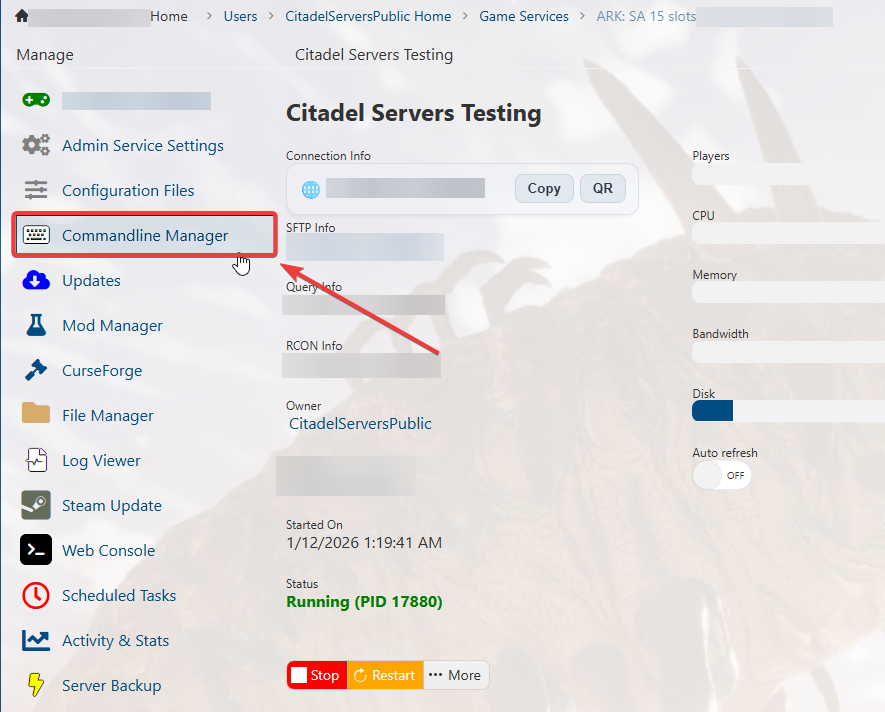
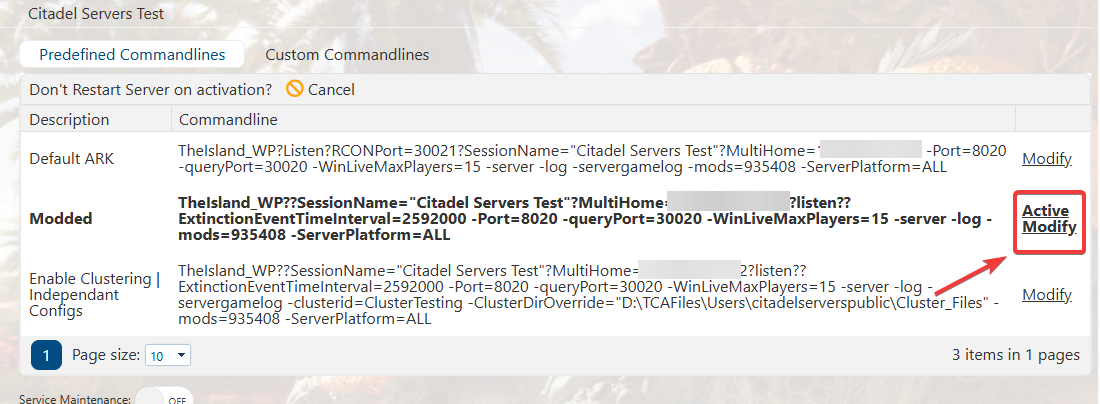
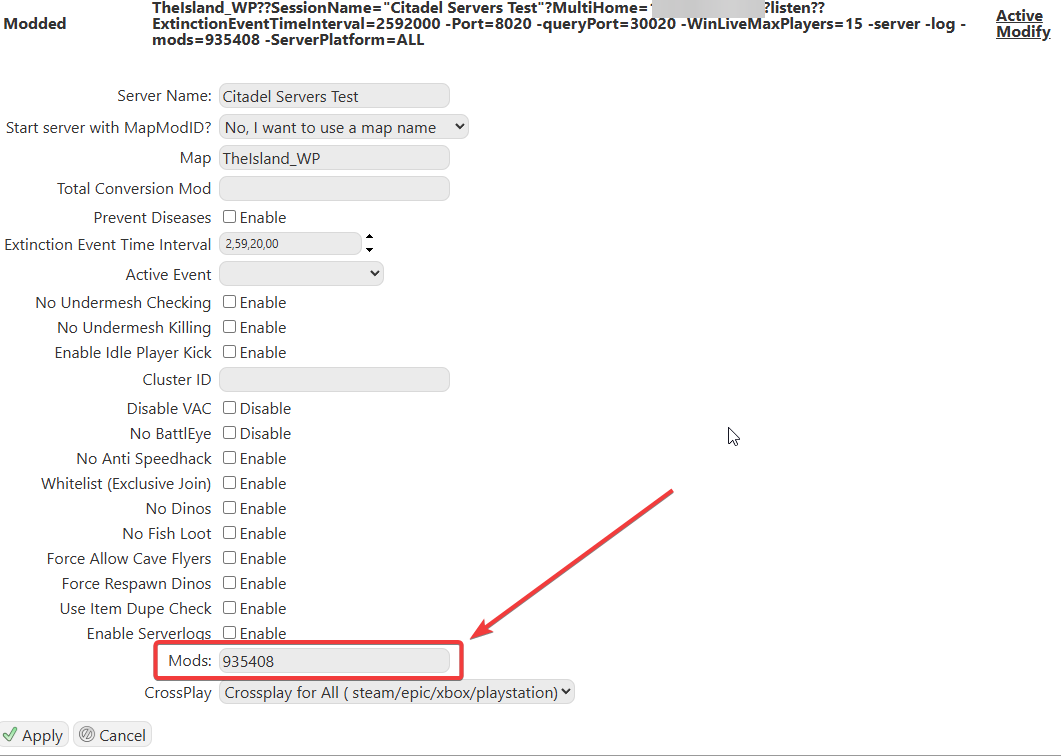
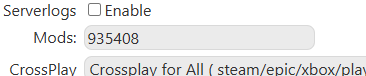
Scroll down to find the Mods – this is where you will add your mod IDs.
Step 3: Find Mods
Go to the official CurseForge ARK: Survival Ascended mods page:
Search for the mod you want.
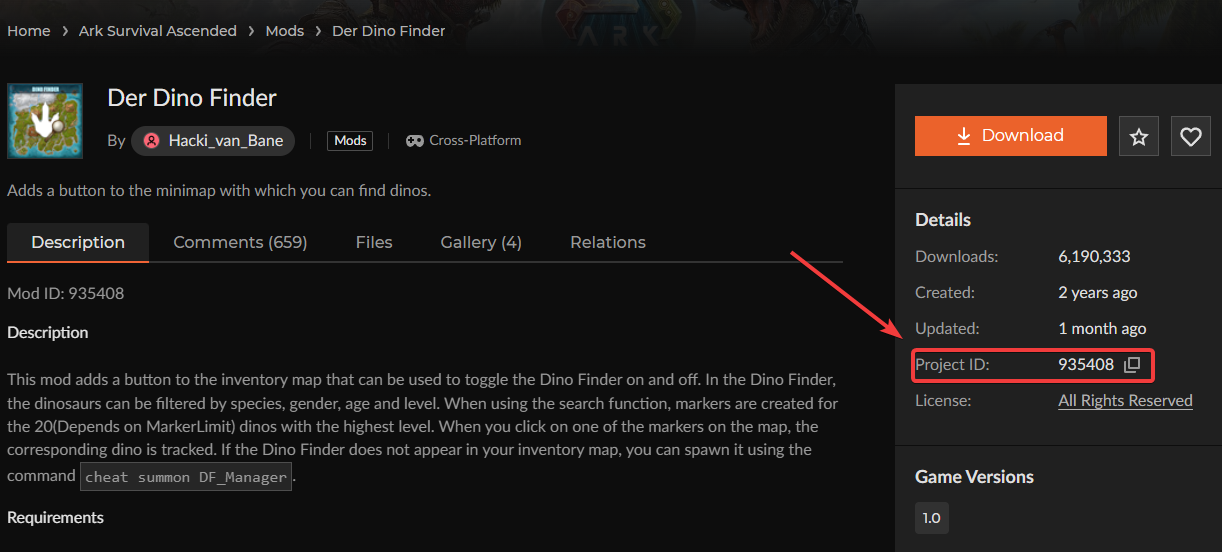
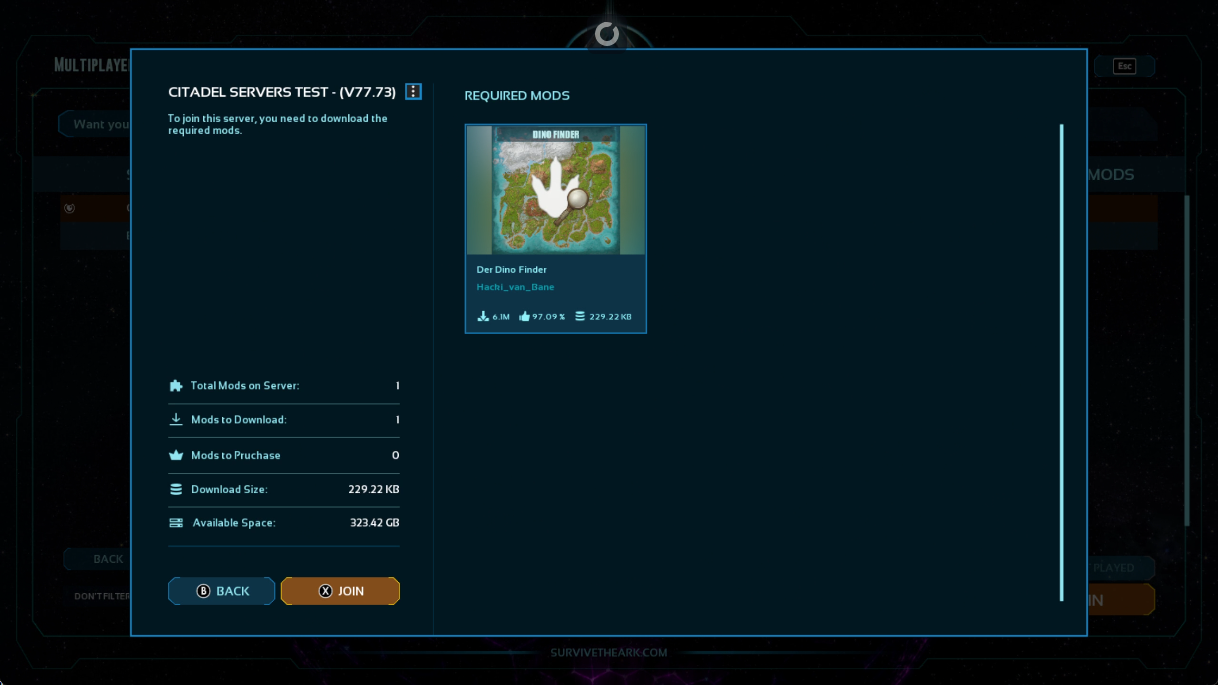
Example: For this guide, we will use Der Dino Finder with Mod ID 935408.
Step 4: Add Mod IDs to the Server
Copy the Mod ID of the mod you want to install (e.g., 935408).
Go back to the Commandline Manager in the Mods section.
Paste the Mod ID there.
When adding multiple mods, separate each Mod ID with a comma, like this:
935408,123456,789012
Step 5: Save and Start the Server
Click the Save button to apply the mods to your server.
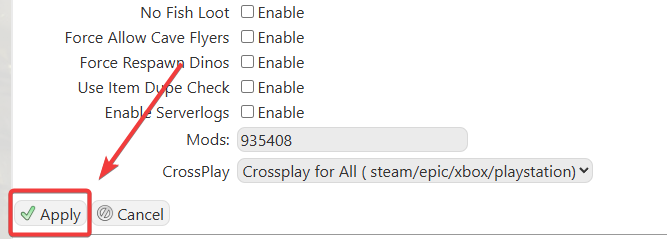
Start the server.
You can check the server logs via the Web Console to confirm that the mods are loading correctly.

Join the server and check the mod list in-game to ensure your mods are active.
Tip: Always make sure the mods you add are compatible with your server version to prevent crashes.
Did the above information not work for you? Please click here to contact our support via a ticket.